
Accessibility and learning with Microsoft’s Immersive Reader
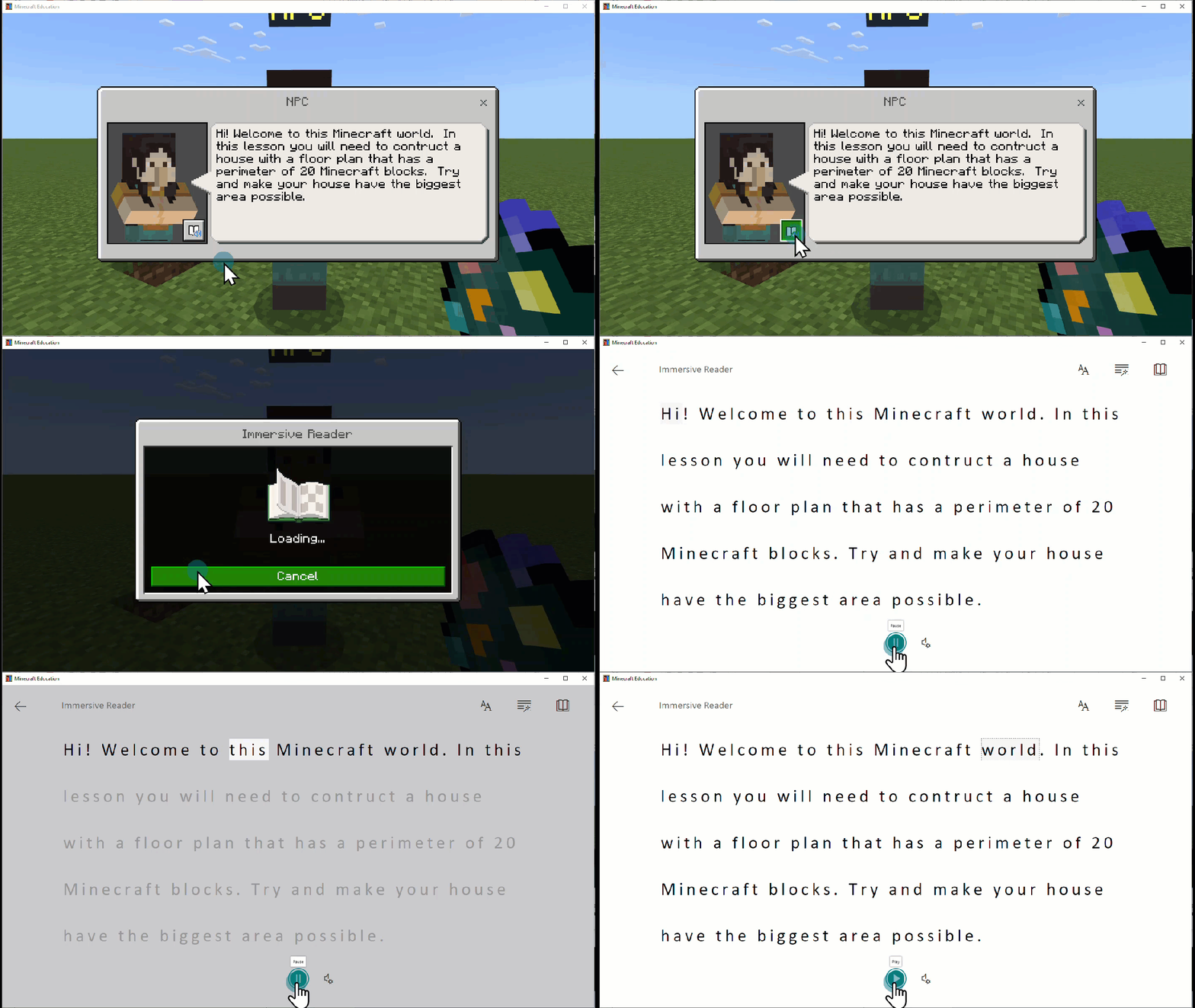
Immersive Reader is a Microsoft tool that makes text more accessible. It’s integrated into many Microsoft applications like Minecraft, OneNote and Word.
Immersive Reader allows you to customise font, text size, line spacing and formatting to suit individual needs. It’s especially helpful for students:
- with learning difficulties
- for whom English is a foreign language
- studying foreign languages
- who need literacy support or scaffolding.
How Immersive Reader can help students
Immersive Reader was originally developed to help students with dyslexia.
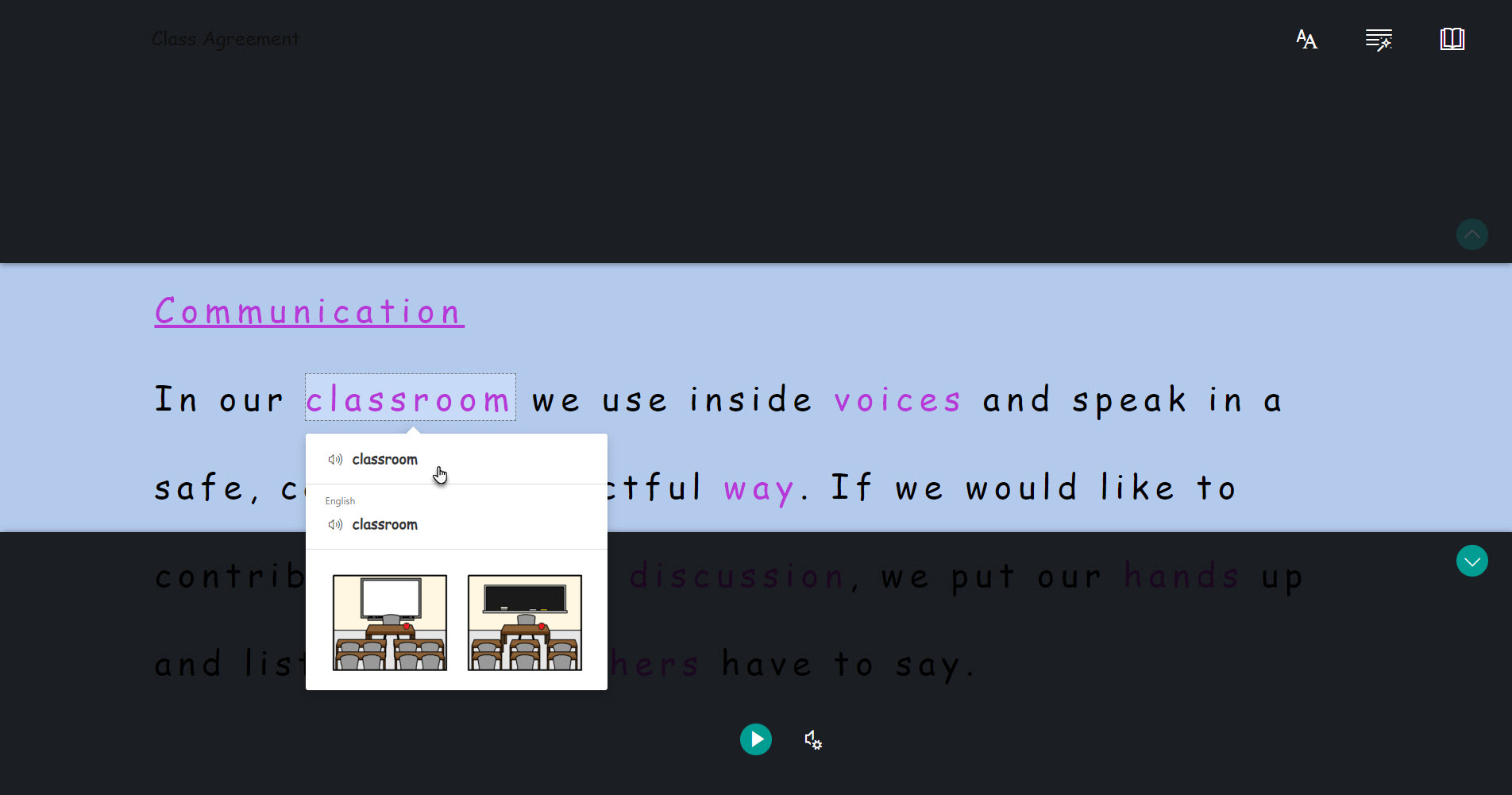
The student can set their preferences and the tool retains these each time it’s launched. The tool offers:
- the ability to adjust reading speed, accent and voice gender
- 3 font types and a line focus feature to reduce cognitive load
- a play function allowing students to hear text read aloud
- a picture dictionary for visual clues.
Applications where Immersive Reader is available
Microsoft apps that have Immersive Reader include:
- Edge
- Forms
- Minecraft Education
- Office Lens
- OneDrive
- OneNote
- Outlook
- PowerPoint for web
- Whiteboard
- Word.
To see all apps that have Immersive Reader, and to find out which languages are available, go to languages and products supported by Immersive Reader and use the ‘select your product’ drop down list. The web application version of Immersive Reader offers more features than the desktop apps.
How to access Immersive Reader
In M365 or Office applications look out for the Immersive Reader icon: an open book with a speaker symbol.

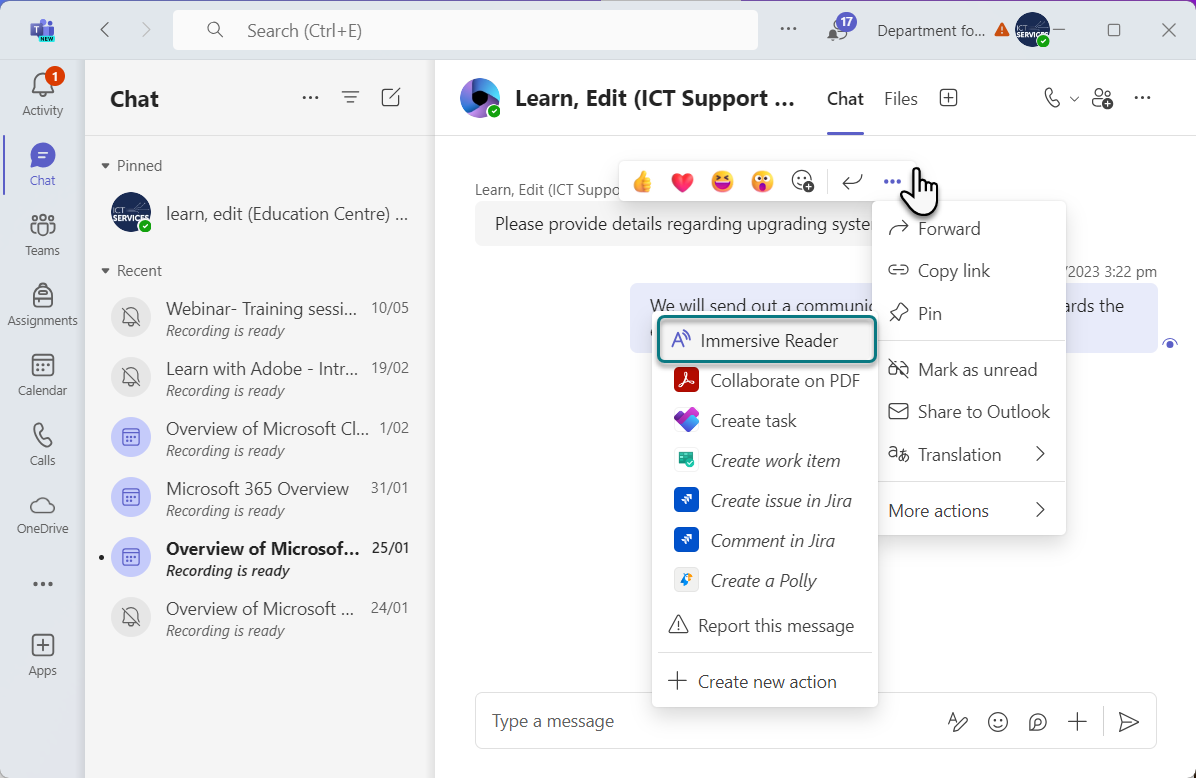
In Word and OneNote, you can find Immersive Reader in the ribbon of the ‘view’ tab. In Teams chat you’ll find Immersive Reader by clicking on the ellipsis (3 dots) under ‘more actions’.
Using Immersive Reader for whole class instruction
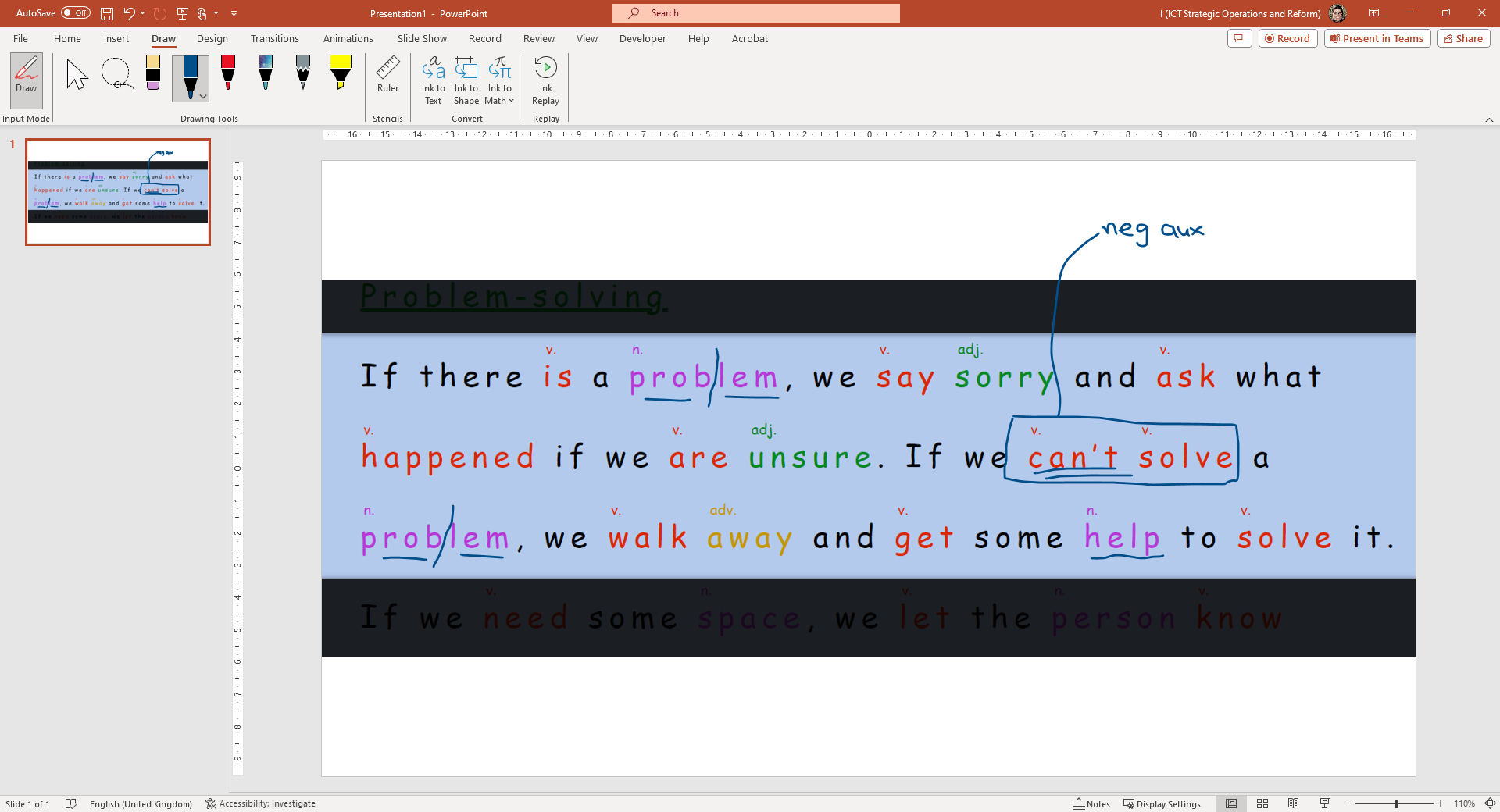
The ‘grammar options’ section of Immersive Reader allows you to colour-code and label parts of speech. If you’re using a phonics or language program that associates different colours with different parts of speech, you can adjust these colours accordingly.
If you want to discuss parts of speech and grammar with your class, you can apply Immersive Reader to text passages on your Interactive Whiteboard.
You can also take a screenshot of the text and use it in other applications like OneNote or PowerPoint for further annotation.
Help students practice reading with Reading Coach
Reading Coach is a ‘learning accelerator’ built into Immersive Reader that allows students to practice reading a section of text and receive feedback. This feature might not be available depending on:
- your browser
- whether you are using the desktop app or web version
- your device (mac, Chromebook or Windows).
Students can access Reading Coach from the 'reading preferences’ menu of Immersive Reader.
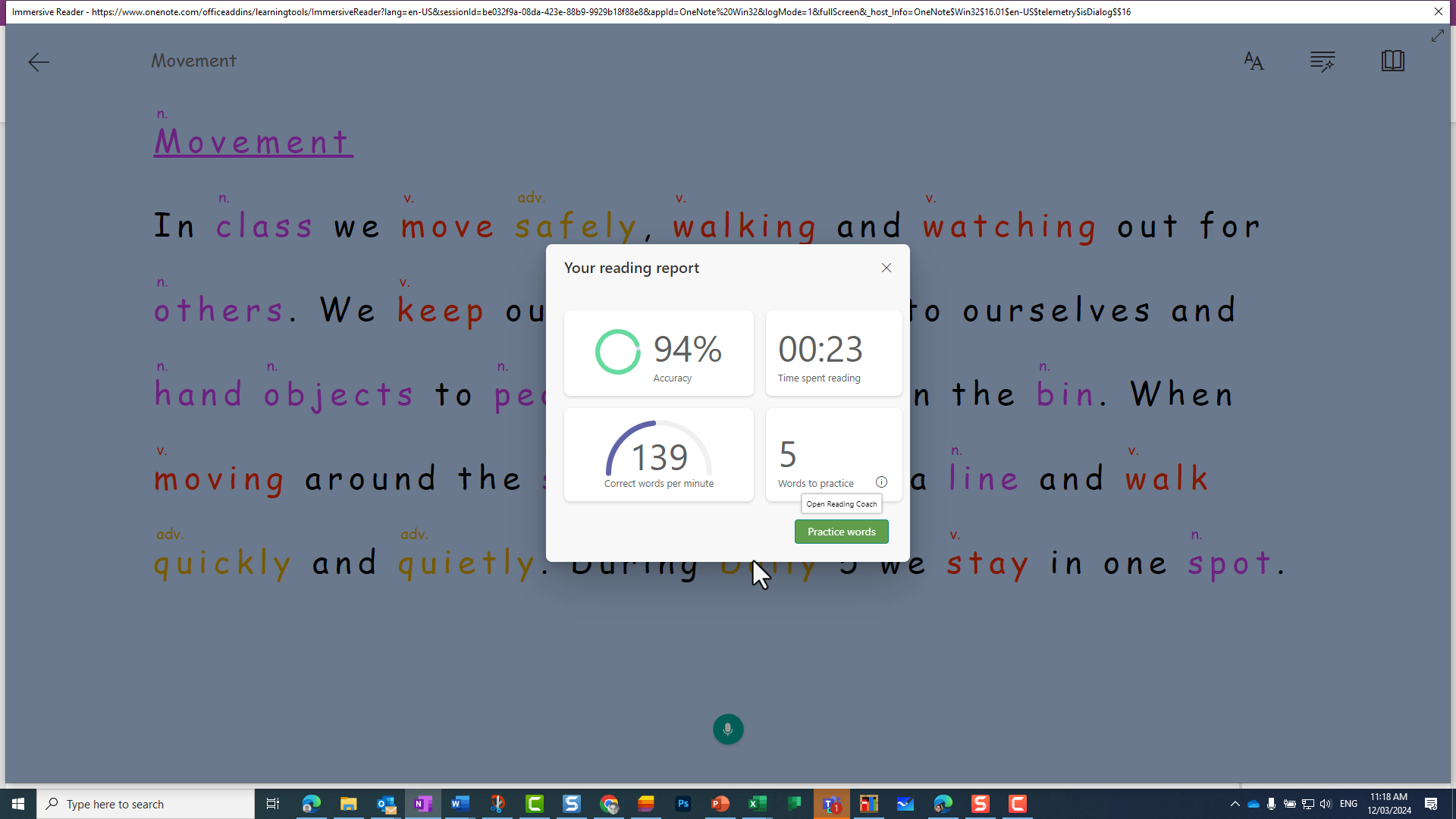
After toggling on Reading Coach, students can press the microphone button at the bottom of their screen to record their reading. Reading Coach then provides a snapshot report showing accuracy and speed and identifies 5 words for practice.
Learn more about learning accelerators, including Reading Coach | Microsoft Education
Support foreign language learning with Immersive Reader
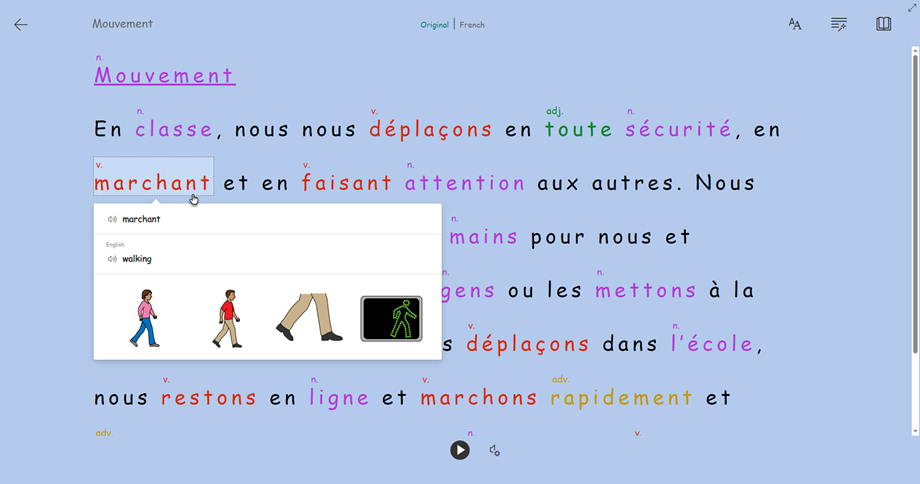
Immersive Reader is available in over 120 languages. It supports translation of words or whole text and – in most languages – a read-aloud function.
This feature:
- can help language teachers in supporting students' listening skills
- assists with parts of speech in foreign languages
- allows students to practice reading in their target language with Reading Coach.
You might be concerned that students may write text in their native language and use a translation tool to translate it into their target language. But most teachers can tell whether the students are linguistically capable of producing the work they submit.
Using Immersive Reader to support families with English language barriers
You can also use Immersive Reader to help overcome language barriers when communicating with parents and community members. Functions that can help with interactions include:
- translate
- read-aloud.
While translation with the support of AI has improved immensely, it’s important to note that some cultural nuances might be mistranslated. You should use an official translator where deemed necessary. (Info box)
Resources
Related content