Planning and organisation made easy with Microsoft OneNote
OneNote is a digital binder that allows you to collect notes , links, photos, file printouts and more. It supports embedding YouTube clips, recording audio notes and writing annotations (with a touchscreen), helping you stay organised.
In Microsoft Class Teams, OneNote is called Class Notebook. (Info box)
OneNote is available as a desktop, web-based or mobile app and lets you access and add to your notes from virtually any device, anywhere. During a professional development session, for example, you can take a snapshot of the presenter's slides, drop it directly into a OneNote page and add annotations and notes as you go.
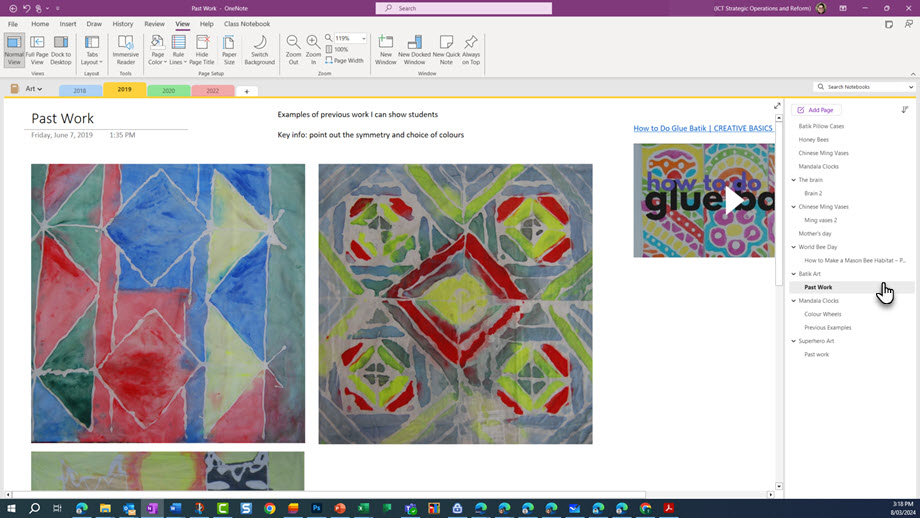
OneNote s can be organised by sections and pages. This allows you to collate information in a way that suits you. You can, for example:
- colour-code your tabs for better visual accessibility
- reuse pages by copying them to different notebooks
- create page templates for easy weekly planning.
In the classroom, you can use your OneNote as an interactive whiteboard.
What OneNote can help you with
Examples of how teachers can use OneNote include:
- planning – find a OneNote copy of the TfEL teacher companion for download on teaching for effective learning
- collating classroom ideas
- organising professional development notes
- creating professional digital teaching portfolios
- sharing content and feedback with students – this is done through Class Notebook in Class Teams.
Using OneNote for collaboration
Examples of how OneNote can be used for collaboration include:
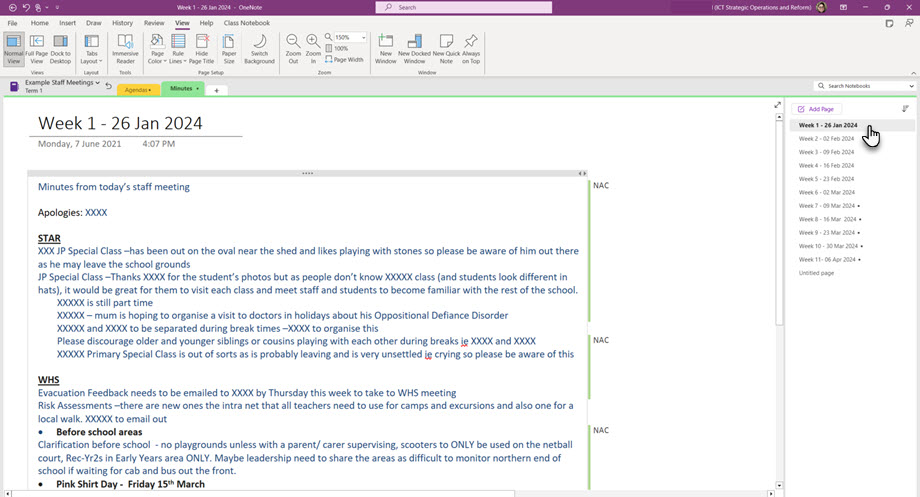
- recording and compiling staff meeting agendas and minutes
- collaborating on shared content
- recording processes and documentation
- sharing notes on individual students' progress in intervention programs or individual learning plans.
Using OneNote with a group (within Teams)
To use a OneNote with a group, it's best to create the OneNote directly within a Microsoft Team. This ensures automatic access for all team members and saves the OneNote to the Team SharePoint site instead of an individual's OneDrive.
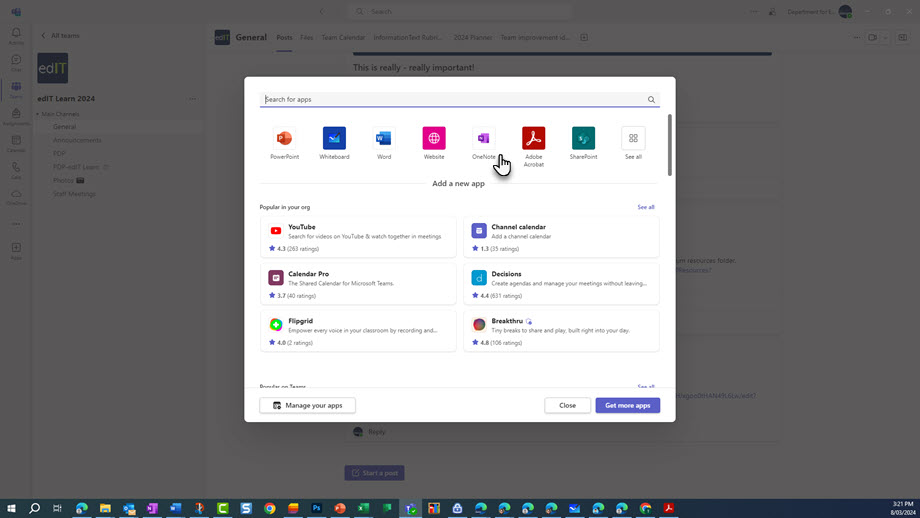
Note: OneNote within Teams is structured differently depending on the team ‘type’ that’s selected when creating a team. Only type ‘other’ allows you to add more than one OneNote. Types ‘staff’, ‘class’ and ‘professional learning community (PLC)’ come with a single OneNote, and you can only link to additional OneNotes by adding them as 'website’ tabs (not as an app). To do so, you need to first create the OneNote and create a link to it, making sure you set the correct permissions for sharing. (Info box)
Good to know: OneNote versions
There are several versions of OneNote, each with a slightly different look and feel. We recommend the M365 version of OneNote, as OneNote for Windows 10 will cease support in October 2025.
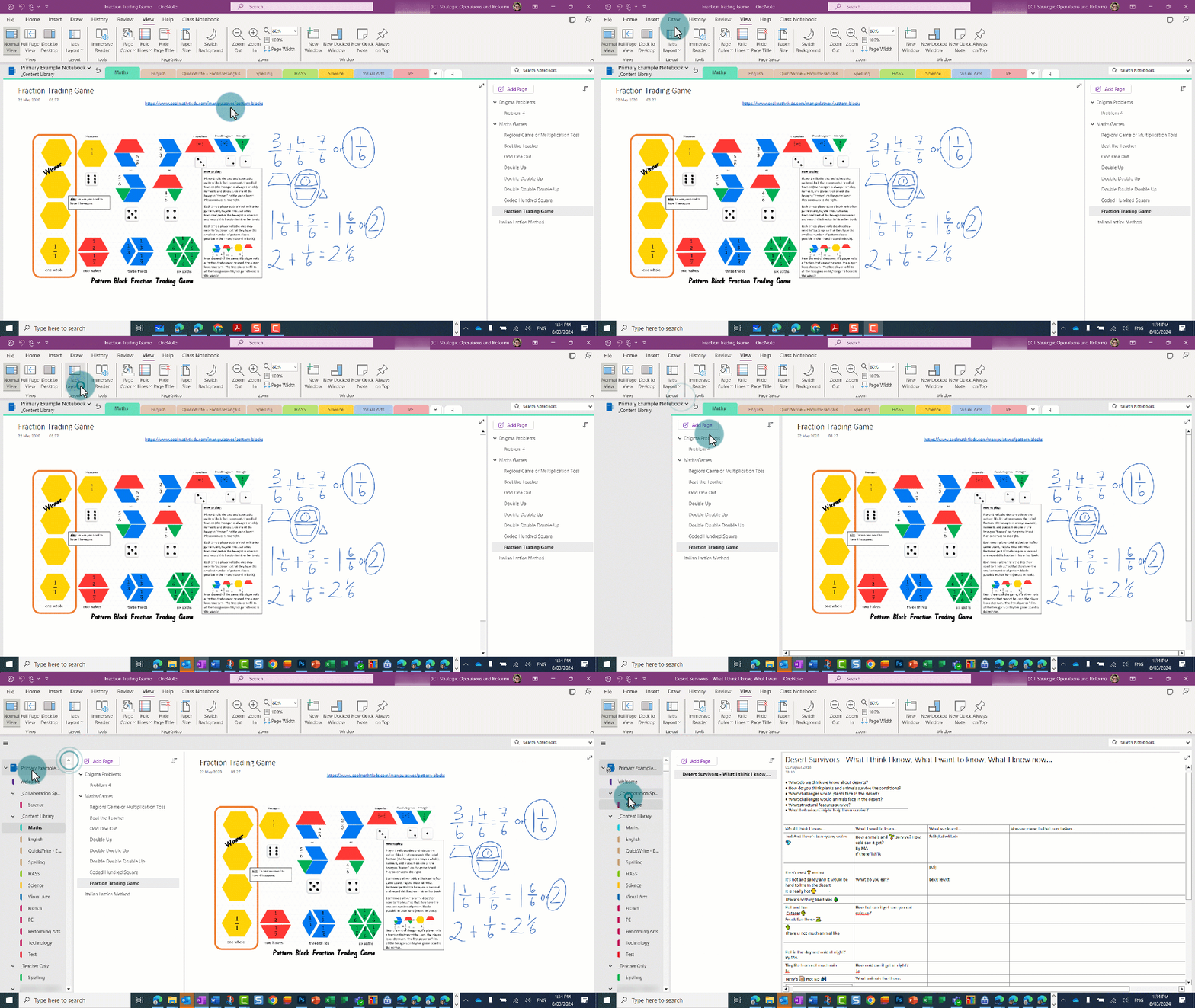
If you’re using OneNote for Windows 10 and want to achieve a similar experience in the M365 version, change the ‘tabs layout’ view to ‘vertical tabs’:
- Open the view ribbon.
- Select tab layout to open the dropdown.
- Select vertical tabs.