
Using non-playing characters (NPCs) to guide your students in Minecraft Education
Non-playing characters (NPCs) can be found in many of the pre-established worlds available within the library in Minecraft Education. These stationary characters enrich the gaming experience by providing information when players interact with them. Students who have completed any of the Hour of Code Minecraft activities are already familiar with NPCs.
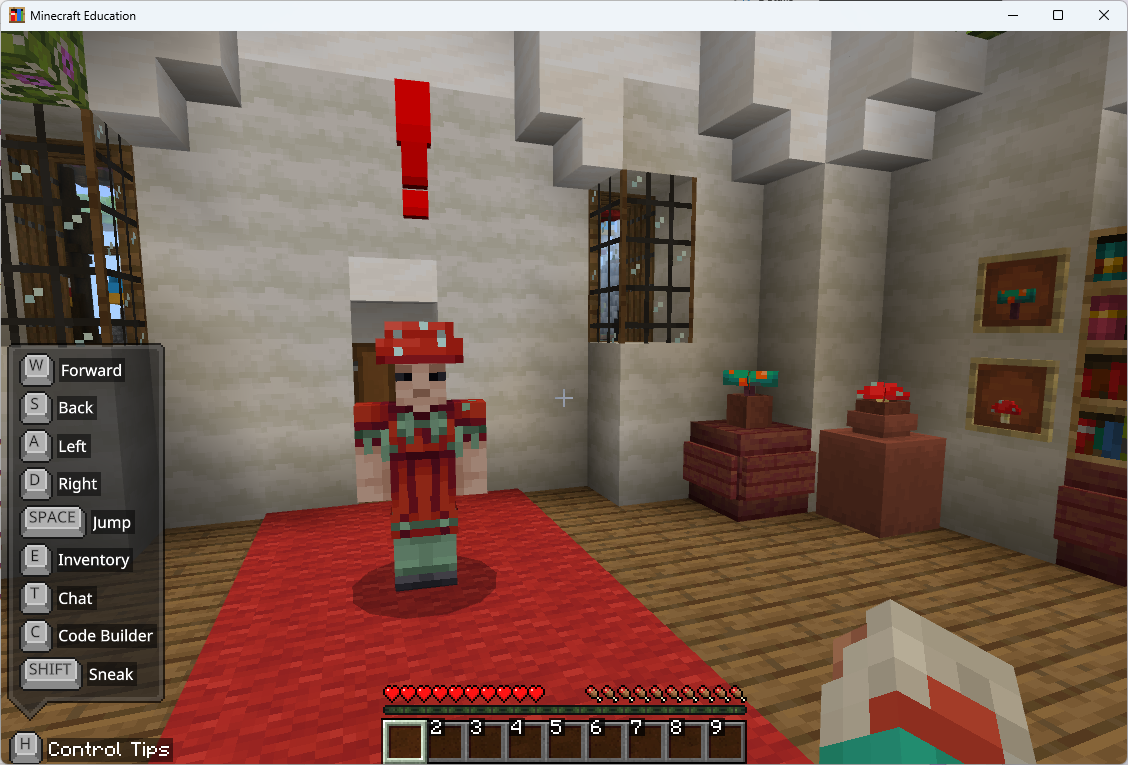
As an educator, you can use NPCs to guide your students within the worlds you create. You can program NPCs to:
- give instructions
- offer detailed information
- link to external webpages and files
- execute in-game commands such as teleportation.
Students can also use NPCs to add an interactive layer to their creations, presenting information in a dynamic way beyond traditional boards and signs. For students with literacy challenges, the built-in Immersive reader can help them understand NPC dialogues.
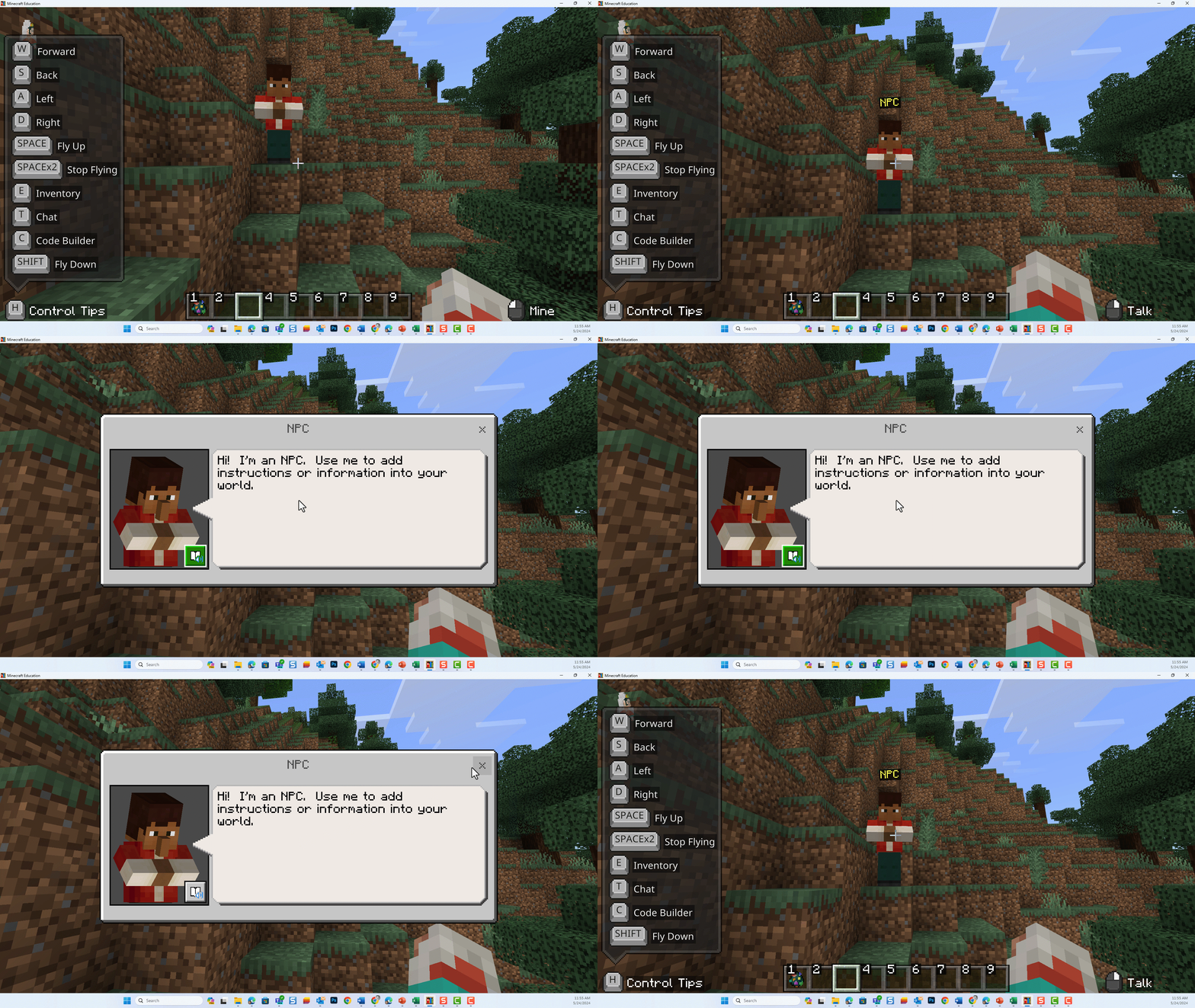
How can you add NPCs into a world
NPCs are unique entities in Minecraft, summoned into the game using a spawn egg in World Builder mode. Here's how to add NPCs to your world and make them interactive:
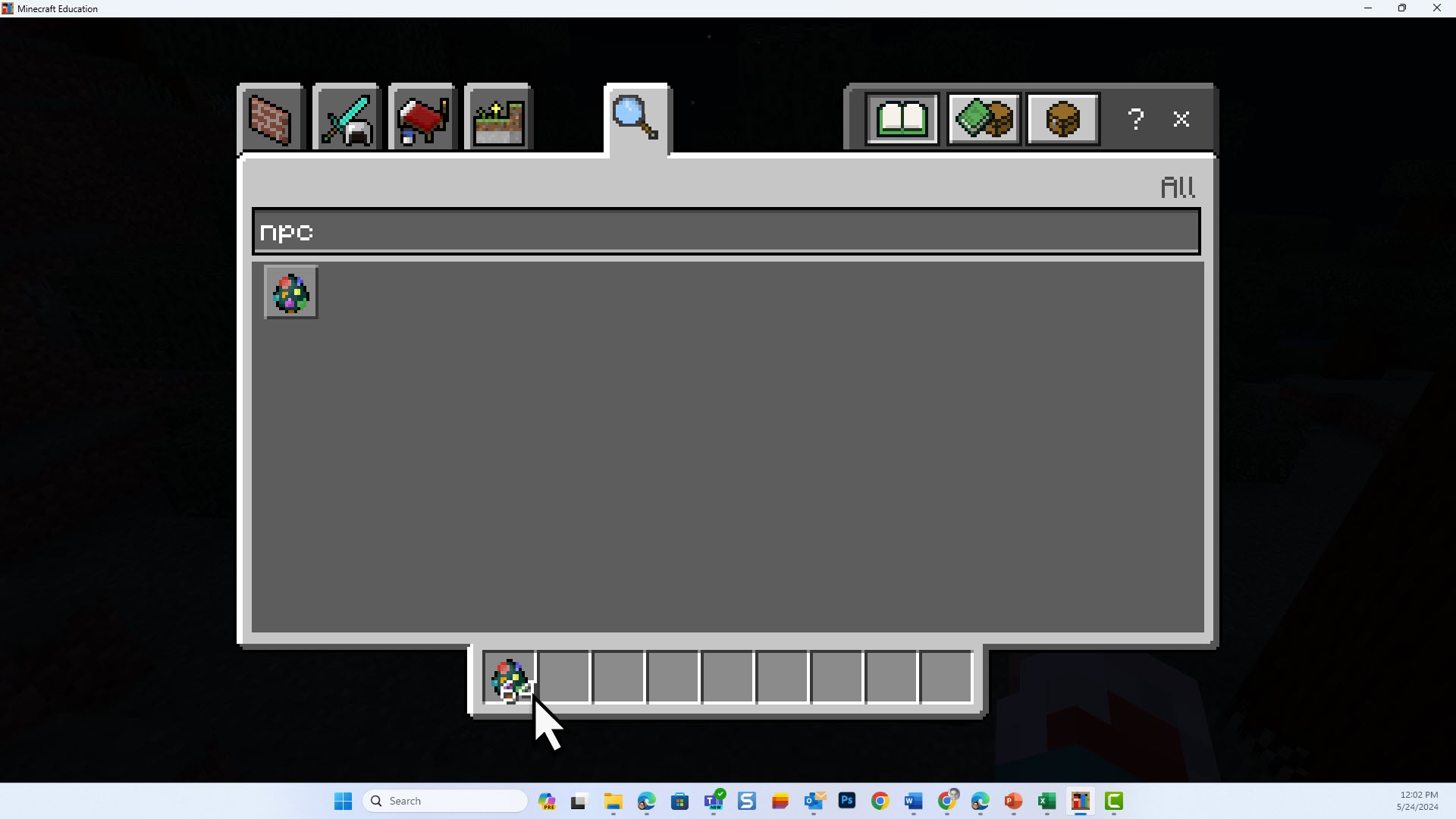
Step 1 – Get an NPC spawn egg
- Press ‘e’ to open your inventory
- type ‘NPC’ in the search bar
- drag the colourful NPC egg into your inventory tray
- close your inventory.
Step 2 – Activate World Builder mode
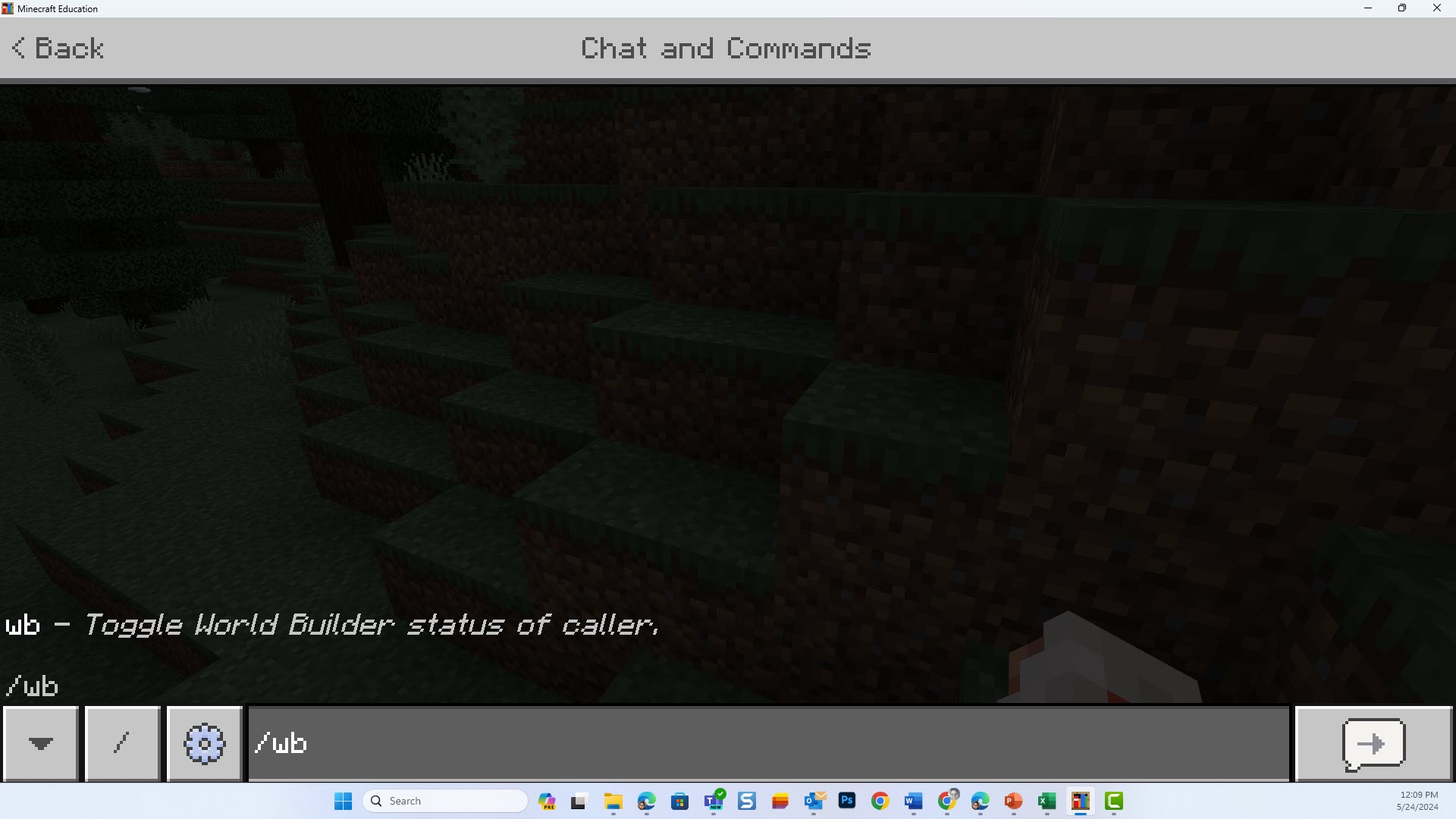
NPCs can only be placed in World Builder mode. To activate this:
- Type /wb.
- Chat and commands will open.
- Click anywhere to close the chat and commands window.
Step 3 – place and edit your character
- Select the NCP egg in your inventory.
- Right-click to place your NPC.
- Right-click the NPC again to edit.
- To add links to URLs or commands select advanced settings.
When adding extensive text to an NPC, it's a good idea to draft it in Word for spell-checking before copying it into the dialogue editor.
Students can’t change or remove NPCs during gameplay – NPCs can only be modified or deleted in World Builder mode.
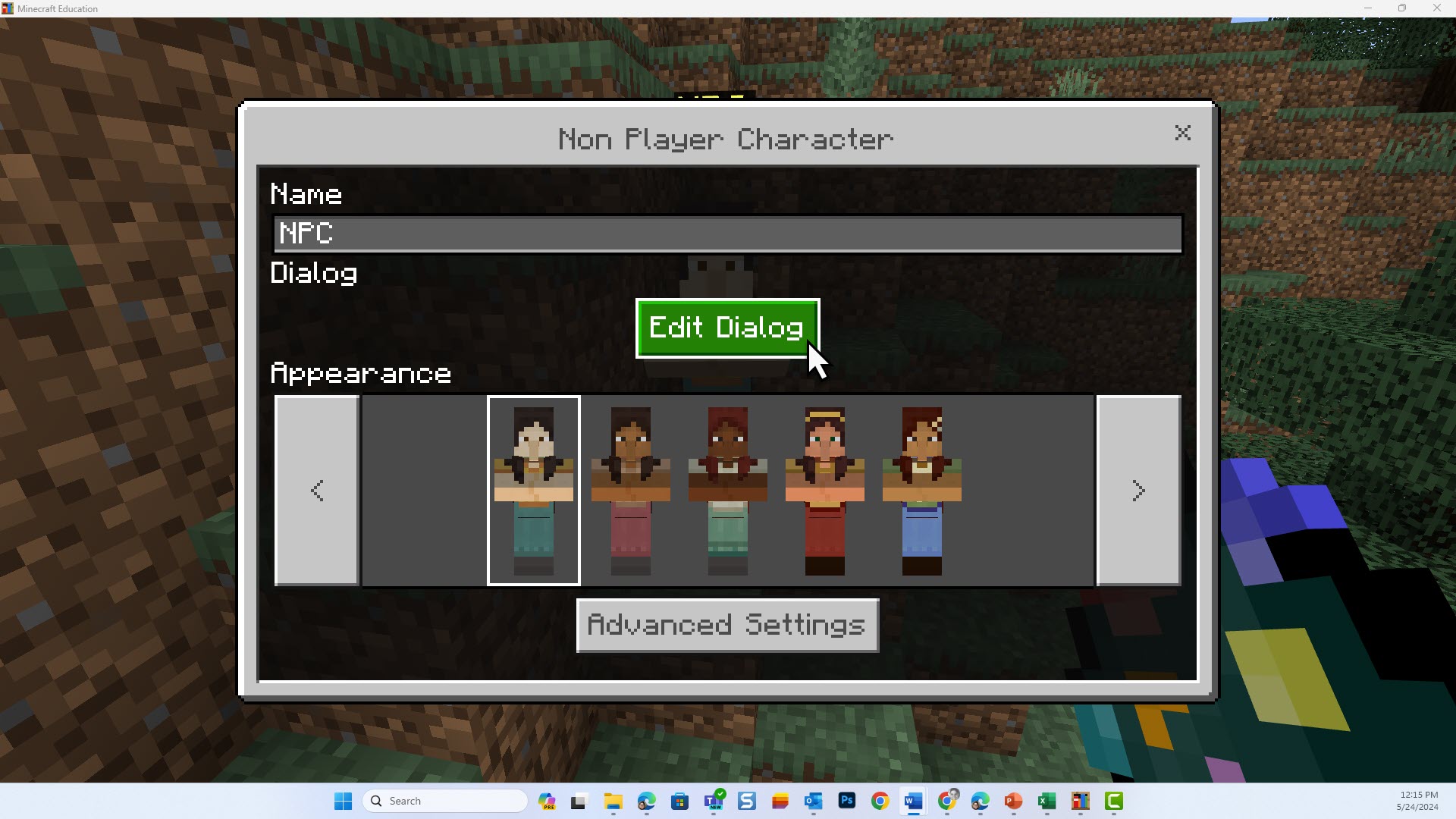
Step 4 – preview your NPC
To see what your NPC will look like for your students you’ll need to exit World builder mode:
- Type /wb to toggle off World Builder mode.
- Chat and commands will open so you can confirm World Builder mode is off.
- Click anywhere on the screen to exit the window.
Share a world with NPCs with your students
When you're ready to share your NPC-enhanced world with students, remember to both:
- export the world
- save the file for student access.
NPCs offer a powerful tool for educators to create immersive, customised learning environments within Minecraft Education.
Related articles