
Boosting teaching and collaboration with Microsoft Whiteboard
Microsoft Whiteboard is a flexible application that enhances teaching and teamwork. Staff and students can work together on shared whiteboards, collaborating either in real-time or at different times. You can share whiteboards across schools with staff and students within the department.
You can integrate whiteboards into Microsoft Teams for use during meetings or add it as a tab so that everyone in the team can access and contribute to it. As a cloud-based application, Microsoft Whiteboard can be accessed from any location and device.
The variety of built-in templates makes Microsoft Whiteboard a handy tool for teachers and administrative staff alike.
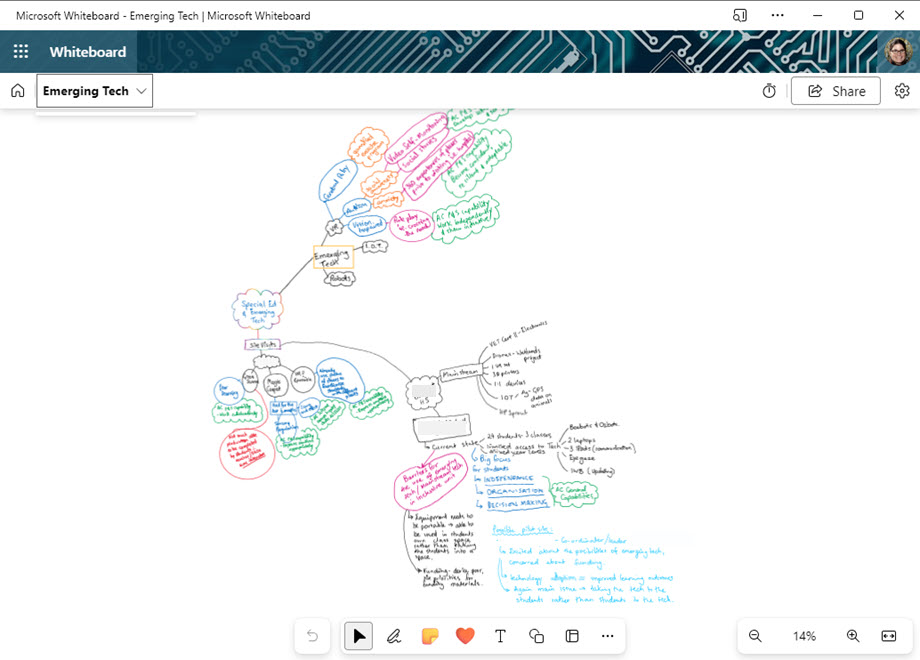
Using Microsoft Whiteboard as an interactive whiteboard (IWB) in class
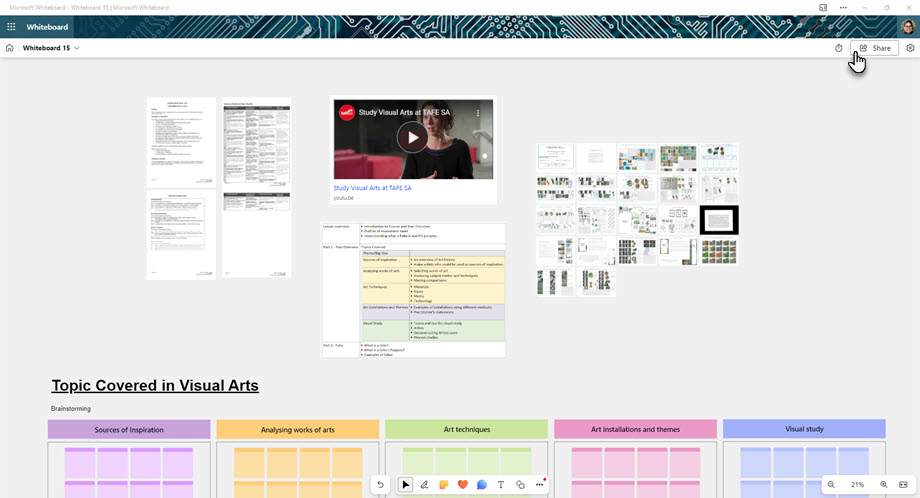
When you create a new whiteboard you can start from a template or a blank canvas, providing limitless space for writing or compiling resources. Use the built-in learning templates and add your resources to have everything you need for your lesson in one place.
If every student in your class has a device, you can invite students to the whiteboard for collaborative activities. Student contributions are automatically attributed, making it easy to monitor participation.
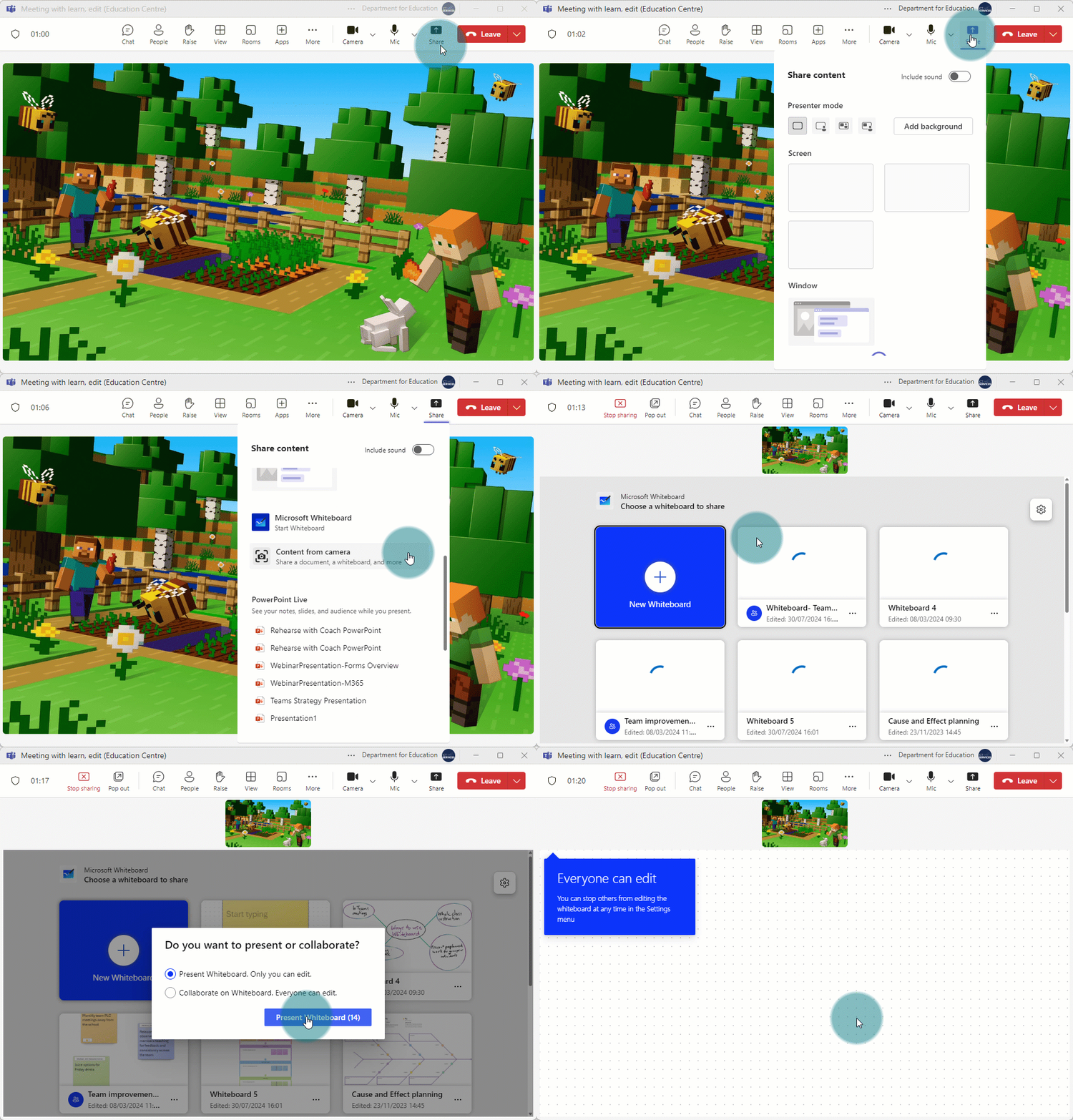
Using Whiteboard in a Teams meeting
Whiteboard is great for real-time collaboration during a Teams meeting. All you need to do is:
- Set up a Teams meeting.
- Invite students.
- Share your screen.
- Select the Whiteboard option.
- Use a pre-prepared whiteboard or create a new one.
This approach gives students easy access to the whiteboard and allows them to view it after the meeting.
Educator tip – keeping a snapshot of a whiteboard
To preserve a whiteboard as a snapshot in time you can create a copy or export the whiteboard as a JPEG or HTML file.
To create a copy of the whiteboard:
- Press Ctrl + A (Windows) or Command + A (Mac)
- Press Ctrl + C (Windows) or Command + C (Mac)
- Open a new whiteboard.
- Press Ctrl + V (Windows) or Command + V (Mac)
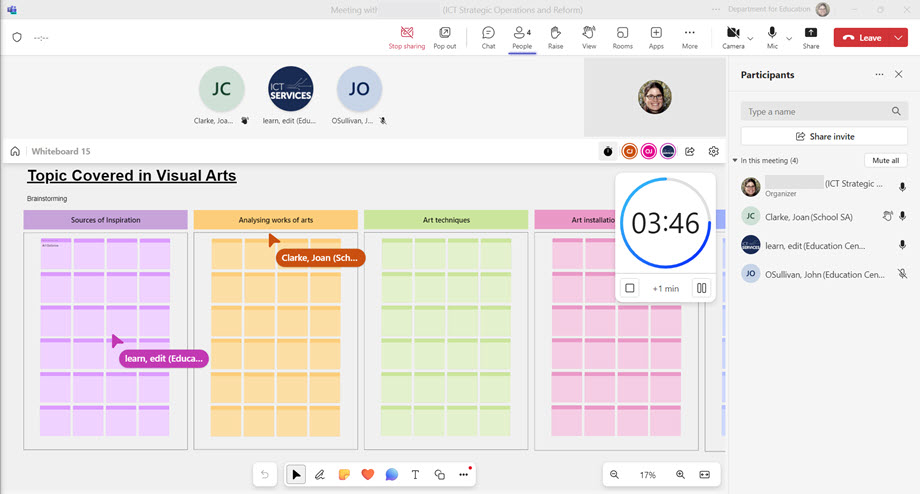
Using whiteboards in a Microsoft Team
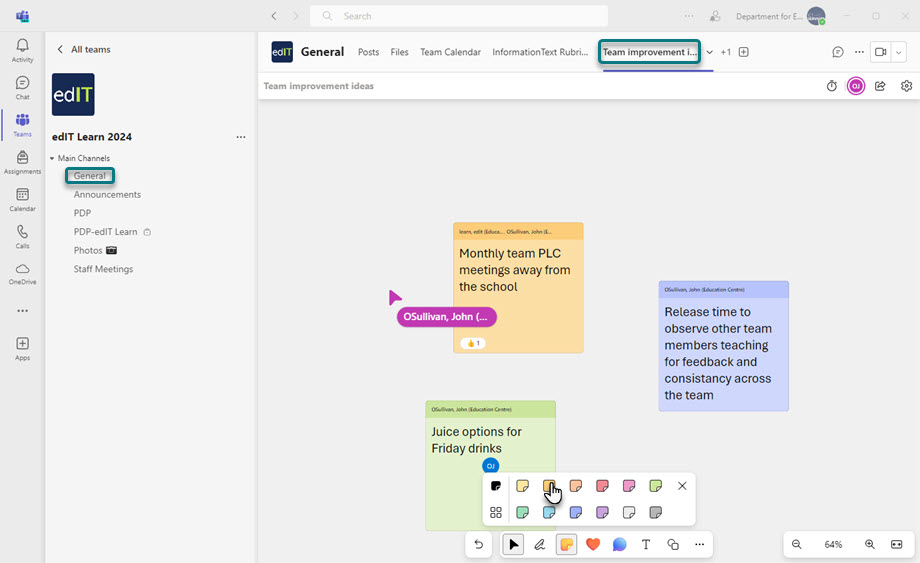
Activities traditionally done using butcher paper and sticky notes can be digitised with Microsoft Whiteboard within the Teams application, making the information easier to compile, refer to and add to in the future.
You can add whiteboards to any channel in a Microsoft team as a tab.
You could use it for brainstorming and collaboration, for example:
- set up an ideas board for students or staff to contribute ideas to help build class or staff culture
- plan a unit of work for students by creating a brainstorming board for a digital sticky notes activity.
Resources
Related articles