Using interactive elements in ClickView to boost engagement with students
ClickView’s video library can be further enhanced with interactive elements. Interactive elements let you make the videos you choose more engaging by adding quizzes or images and annotations. You can use quiz question formats such as:
- fill-in-the-blanks
- multiple choice
- true or false,
- short answer,
Students can use the Immersive Reader feature if they need help reading the questions.
Many videos on ClickView, especially those curated by ClickView, already have interactive elements. You can use these as they are or change them to match your teaching goals. You can also easily add your own if you're working with a video that doesn't have interactives including content from the movies and TV section.
Using pre-made interactive elements
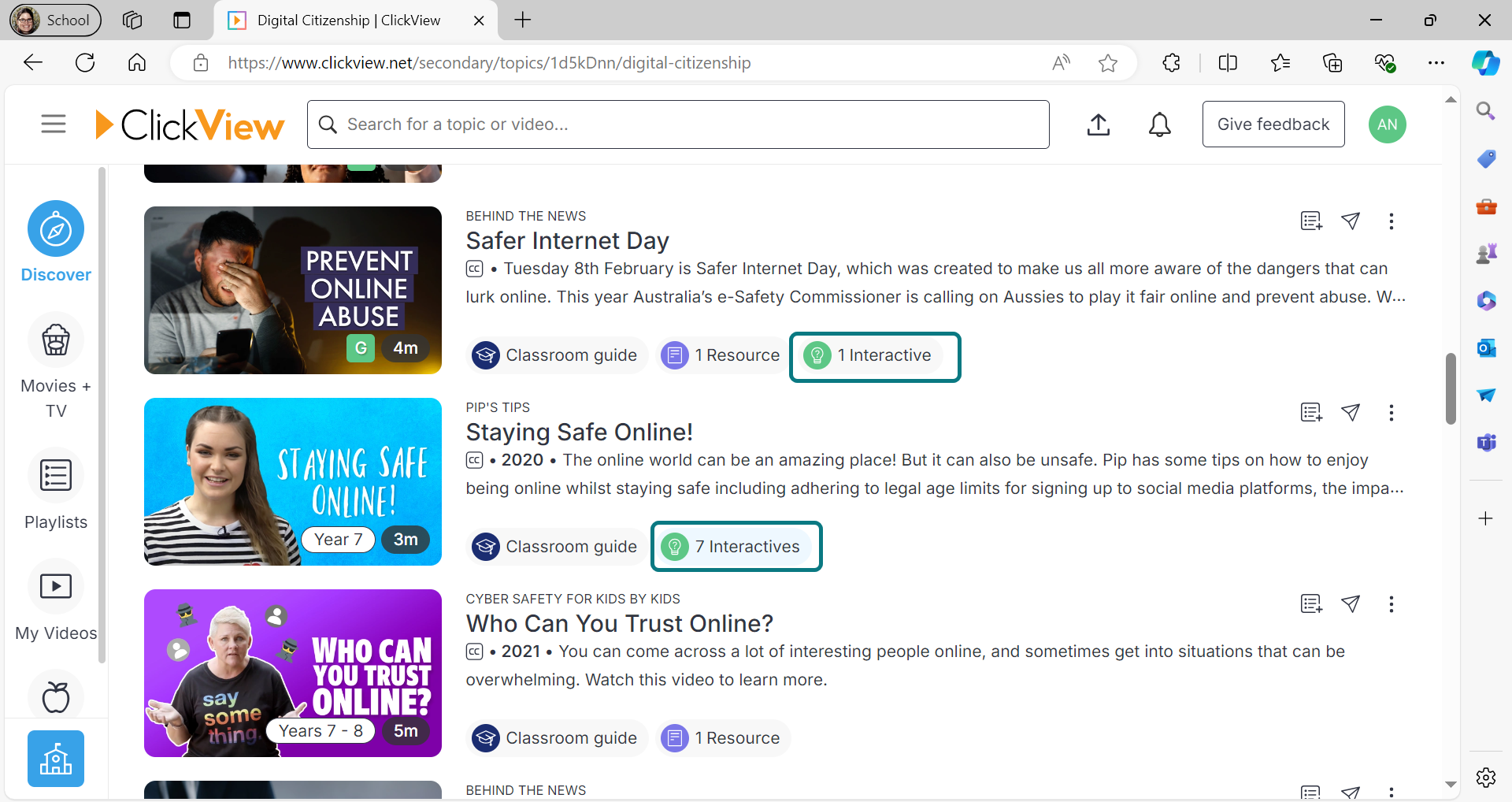
In the ‘Discovery’ section, videos with ready-made interactives are marked with an interactive tag and a green lightbulb icon. Select the video and scroll to the ‘Resource’ section to check if they meet your needs. In this section, you can:
- review the questions
- add the video to a playlist
- share the link
- copy the interactive.
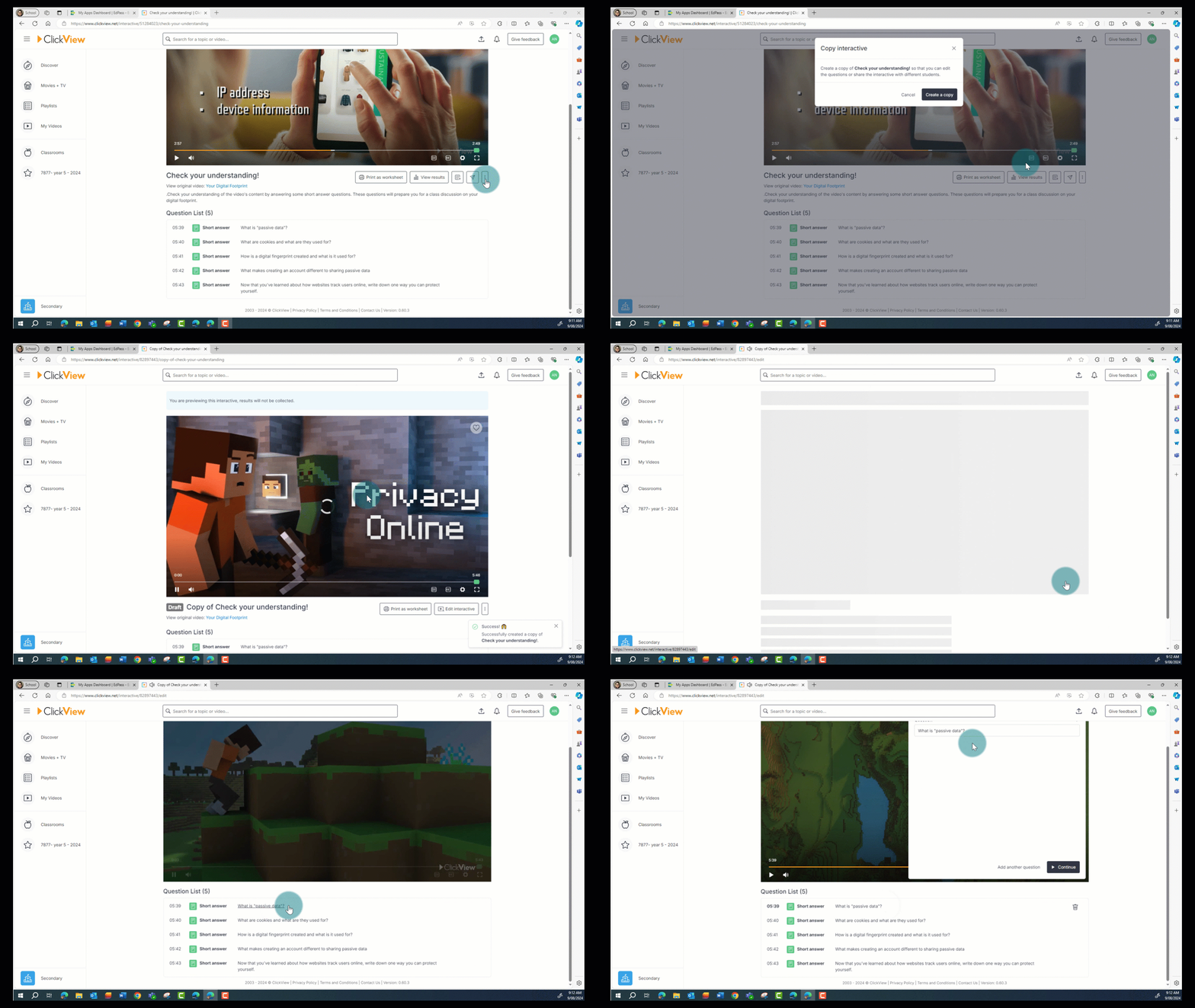
To edit the prebuilt interactive element, you need to:
- Select the three dots (ellipsis) at the bottom right of the video preview.
- Choose Copy interactive.
- Select Create a copy.
- Select Edit interactive.
- Select a question to change the text, adjust the timing or add more questions.
Creating your own interactives
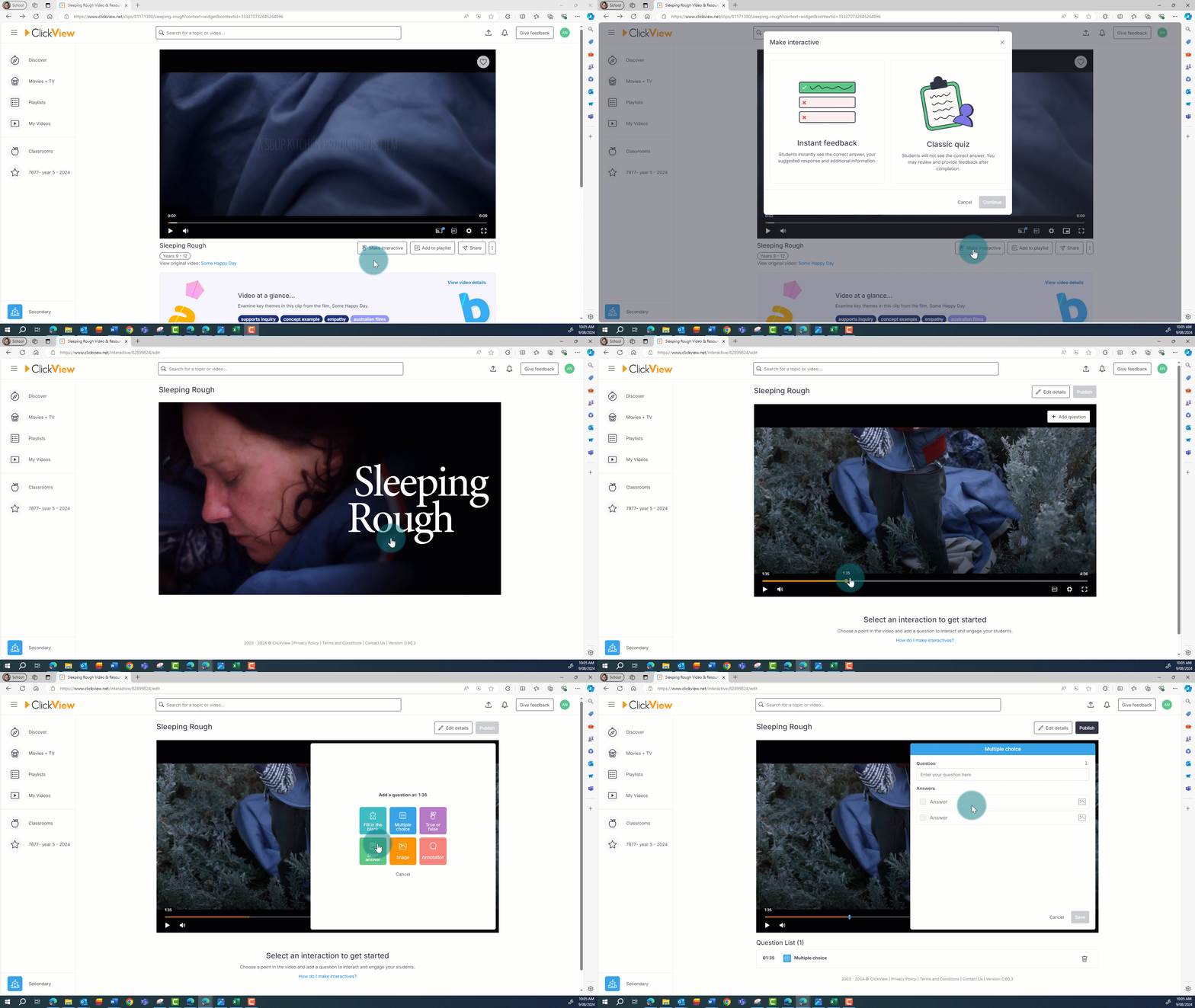
If you want to add interactives to a video that does not have them:
- Select the video.
- Select the Make interactive button.
- Decide if you want instant feedback or a classic quiz.
- Pause the video and click the timeline where you want the first question.
- Select the Add question button in the top right of the screen.
- Pick the type of element you want to add.
- Add your question, image or annotation.