Check out this slide
Check out this slide
asdfjkll
Minecraft is a popular online game. You can build your own digital worlds or complete tasks in pre-designed ones, individually or in groups.
Minecraft Education is a modified version of the game, specifically tailored for educational settings. It offers a captivating, open-ended environment where students can explore, create, collaborate and learn across a broad range of subjects.
Minecraft Education is available to all schools under the department’s Microsoft licence.
The game is great for:
What the research says: Minecraft Education White Paper: The Education Benefit of Minecraft | Microsoft.
You can explore lesson plans aligned with the Australian curriculum or use the integrated game tutorials.
Minecraft Education allows you to instruct computational thinking and coding through the Code Builder, or delve into chemistry with the Chemistry Lab. The potential for curriculum integration is boundless.
Minecraft Education offers a unique way to make learning more hands-on and exciting for students. It helps them see how their classroom lessons apply to a broader world.
When you bring Minecraft into your teaching, think about how it can support what you're already doing across subjects and year levels. Here's a breakdown to get you started.
Find examples of Minecraft lessons for different subjects in the in-class learning resources section (on this page).
Cognitive engagement – learners are stretched and challenged to demonstrate their learning in the safety of a game environment
Discernment and judgement - Learners can add Minecraft to their choices when selecting ways to demonstrate their learning.
Inclusion - Built in accessibility tools allow learners from all backgrounds and skill levels to learn through Minecraft Education.
Curiosity and creativity - The sandbox nature of Minecraft allowing students to create whatever their imagination lets them.
[...]
Marryatville HS has been using Minecraft Education since 2022. Find out what they learnt and how it’s impacted the students and school.
Read the full Marryatville case study
Minecraft Education doesn’t have special requirements. It:
If playing on a laptop, having a mouse will be much easier than using the trackpad.
Minecraft Education has been endorsed as a whole of department enterprise solution available to all sites.
Before you start using this software, your site leader must have reviewed and accepted the cyber security risk assessment – Minecraft Education and approved it for use. It includes recommended strategies on how to mitigate risks.
We’ve also prepared safety guidelines for you to consider in class (on this page).
Minecraft Education is free for all schools and preschools as part of the department’s enterprise agreement with Microsoft (Microsoft Education A3 licence).
Contact your school IT to organise the installation of Minecraft Education on all devices of students and teachers who will use it. You can play on more than 1 device at the same time.
To use the multiplayer option, all computers must be on the same network and running the same version of Minecraft.
If you have admin permission to install the software yourself you can download the correct Minecraft Education for your device.
If the Windows Store is blocked on your device download your browser: Minecraft Education
Students and staff can access Minecraft Education by logging in with their @schools email and password – Okta single sign-on may sign you in. (If working from outside the school network, you may need additional authentication as for all other Microsoft applications.)
To use Minecraft Education with students below year 1 who don’t have an @schools email, see: Minecraft - Log in for Reception students (on edIT)
The education version has useful features for teachers, including:
Read the article on how to use the education features of Minecraft.
Make sure to get hands-on with the tool before your first lesson. You don’t need to know everything, but it would be useful to have some basic knowledge of how things work in the Minecraft world.
Minecraft offers key resources to help you get started, including:
Learn how to use non-playing characters (NPCs) in Minecraft Education (on edSpark) – you can use these to give guidance to your students within the game.
Microsoft offers training for teachers, including:
Register for instructor-led training for Minecraft Education on plink. Sessions are available throughout the year and topics include getting to know Minecraft Education, lesson ideas and coding.
...
Connect with other Minecraft educators: You can join the Minecraft Education community to learn from fellow educators and share resources. This is an international forum.
For support from the department join the Minecraft Education support team (on Microsoft Teams).
Make sure to prepare any additional tools that you’ll need to use for your lessons.
For example, you might wish to provide students access to collaboration platforms like:
You might also consider using tools like:
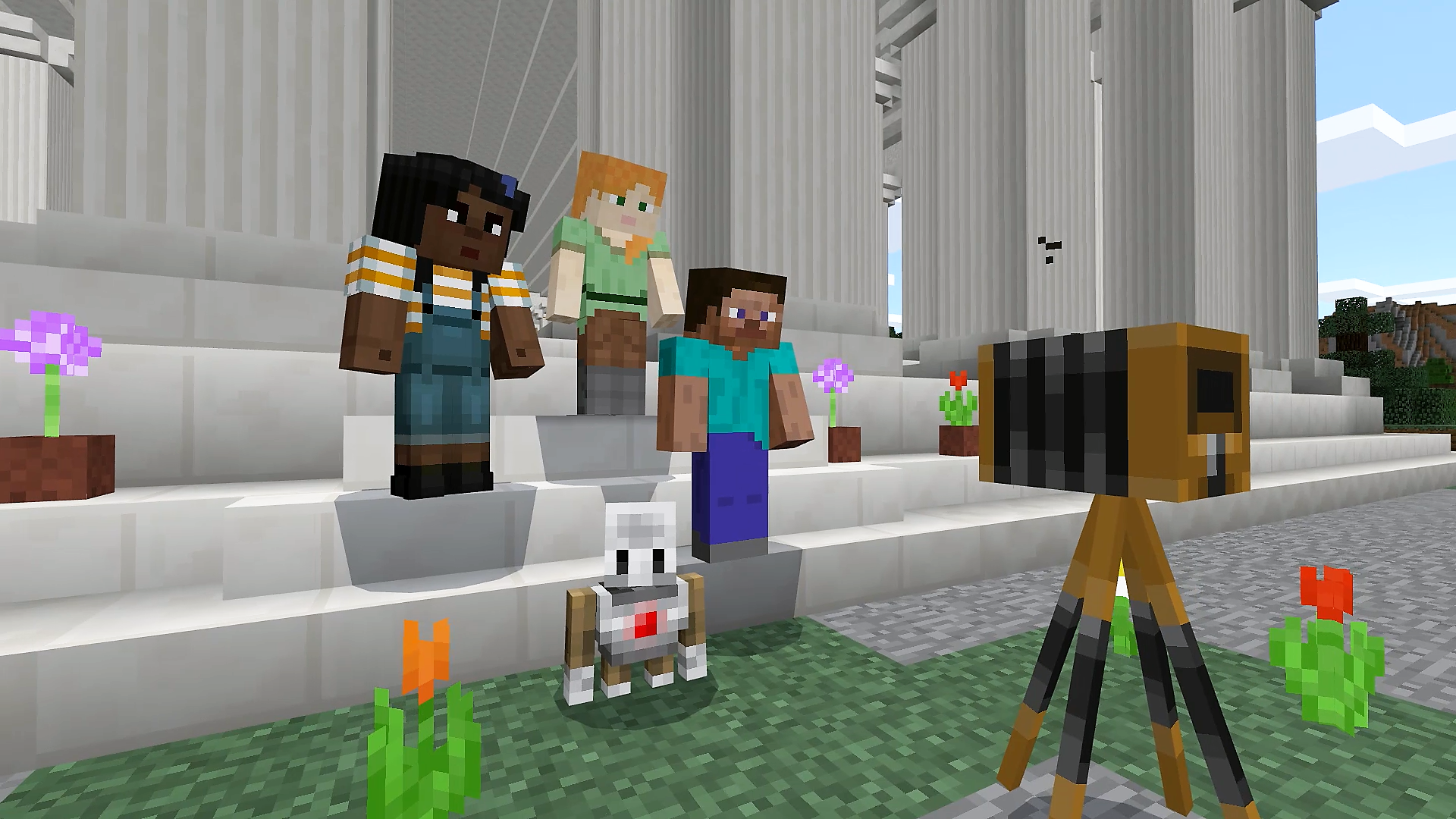
Students can also use the camera and quill tool to record their work directly within Minecraft.
To record video while playing Minecraft you can:
Here are some tips to help your lesson using Minecraft go smoothly and efficiently.
Plan a proactive response to ‘griefing’: In Minecraft, ‘griefing’ is the act of irritating and angering people through the use of destruction, construction or social engineering.
It’s important to have a plan aligned with school policies in place to address disruptive or destructive behaviour within the Minecraft environment. Find tips on how to manage ‘griefing’.
Start with an orientation: If students haven’t had the opportunity to use Minecraft in the classroom before, consider running some introductory lessons to help orient students. Refer to the previous section on learning how to use Minecraft for some basic topic ideas that may be covered in orientation sessions .
Getting started: Once students are familiar with some of the basic controls and features of Minecraft Education, start by encouraging students to build their own worlds. You can set a simple, open-ended task such as ‘build a house’ or ‘design a garden’. Some tips to consider:
Emphasise purpose: Frame each Minecraft activity in the context of learning objectives. Clearly articulate what students should gain from the experience and let them know what you expect at the end of every lesson, for example to complete a page on their digital notebook, a screenshot recording of their creation, a reflection or similar.
Classroom norms in Minecraft: Collaborate with students to create specific rules for interacting within the Minecraft world. Emphasise:
The nature of this space necessitates specific safety considerations. Here are key guidelines to protect your students and foster a positive learning environment in this digital space:
Note that students can change game settings in worlds that they import. Restrictions are only possible when you invite students to a world for collaboration. When they build or import a world, you’re not able to add restrictions.
Here are some tips and ideas on how to address any technical issues and classroom management challenges that may arise while using Minecraft Education in your classroom.
You can choose from a wide variety of Minecraft Education resources, including lessons, challenges and worlds and esports. There are over 600 lessons plans and subject kits to adapt and use.
Subject kits may contain:
Here are some practical teaching and learning ideas for different subjects:
Minecraft is ideal for teaching different mathematics concepts. An Australian study found students to feel more confident studying maths while using Minecraft. With this tool, students can design structures to understand geometry, learn about area and perimeter or visualise data. Sample Minecraft lessons for maths include:
There are several ways Minecraft may be integrated in the sciences. Students can visualise scientific concepts like ecosystems, the human body, or chemical reactions. They can also illustrate and explain their understanding of geography and physics through building models and simulations. These are examples from the Minecraft science subject kit:
One great use of Minecraft is to create historical simulations. Students can recreate historical periods, events or places. They can build detailed models of ancient cities, iconic landmarks or significant battlefields. Students can research and integrate accurate architectural styles and materials.
Here are sample Minecraft lessons for HASS:
In English, Minecraft can help to bring stories to life by having students build scenes, characters or symbolic structures from novels or plays. Here are sample Minecraft lessons for English:
There are various ways Minecraft Education may be used across the different arts. For example, students can design virtual art exhibitions, compose original music with in-game tools or develop theatrical performances within Minecraft. Here are sample Minecraft lessons for art and design:
When using Minecraft in language studies, students can design immersive worlds that are language-specific (for example, a Spanish town) for vocabulary building. They can also work on cultural recreations and language-specific recreations. Here’s an example lesson that enables students to practise Japanese: weather report in Japanese.
Students can design fitness challenges, food systems or mindfulness spaces in Minecraft. The social emotional kit on Minecraft contains lessons and activities that look at students’ emotional and mental wellbeing, and it covers topics such as empathy and decision making.
As a whole, Minecraft teaches students a variety of skills in technologies, including game design, coding and 3D modelling. Here are additional resources that are useful for teaching this subject area in Minecraft:
To build your own coding lessons read the article AI Prompt Lab: Use CoPilot to build coding lessons in Minecraft | Minecraft Education.
Equity and inclusion subject kit – lessons that explore concepts like social justice, identity and tolerance.
Climate and sustainability subject kit – lessons, worlds and collections to bring your environmental curriculum to life.
Intro sentence (what is the task about)
The classroom activity pack comes with a:
Download the classroom activity pack (ZIP folder xxxMB)
Have you used Minecraft Education with your students?
You can leave a review on edSpark or give a testimonial (link to feedback form)
The department has prepared a cyber risk assessment report for [tech name] for your consideration. Before you start using the technology, we recommend your site implement the mitigations noted in the risk assessment report. Your school may also do their own risk assessment. You need to reassess the risks regularly.
Ultimately, your school or preschool owns the risk if you’re using this technology.
Learn more about managing cyber security risks when using third-party vendors and technologies.
Proposed original copy:
ICT Cyber Security has prepared a risk assessment report for your consideration. The risk assessment highlights whether the product's benefits are balanced with necessary security measures, safeguarding staff and student data, and maintaining essential learning tool availability. The department recommends schools implement the mitigations noted in the risk assessment register.
Please Note: this is advice only and schools wishing to perform an independent risk assessment are encouraged to do so as ultimately the risks is owned by the school implementing this product. Site leaders should read and accept the outlined risks identified during the assessment prior to using PRODUCT. For advice please see: Completed risk assessment.
The department's Cyber Security Unit has deemed [tech name] as low risk. No formal risk assessment is required.
Note that:
Ultimately, your school or preschool owns the risk if you’re using this technology.
Read more about managing cyber security risks when using third-party vendors and technologies.
The department has prepared a cyber risk assessment report for [tech name] for your consideration.
Before starting to use the technology, we recommend site leaders read the report and:
This is advice only. Your school may also do their own risk assessment. You need to reassess the risks regularly.
Ultimately, your school or preschool owns the risk if you’re using this technology.
Learn more about managing cyber security risks when using third-party vendors and technologies.
ICT Cyber Security has prepared a risk assessment report for your consideration. The risk assessment highlights whether the product's benefits are balanced with necessary security measures, safeguarding staff and student data, and maintaining essential learning tool availability. The department recommends schools implement the mitigations noted in the risk assessment register.
Please Note: this is advice only and schools wishing to perform an independent risk assessment are encouraged to do so as ultimately the risks is owned by the school implementing this product. Site leaders should read and accept the outlined risks identified during the assessment prior to using PRODUCT. For advice please see: Completed risk assessment.
Review the cyber risk assessment report for Minecraft Education.
Some of the risks identified by the department: