
Using LearningGrids to support students of all abilities with Clicker 8
Clicker 8 LearningGrids are customisable grid templates and activities that enhance learning. Many of the LearningGrids are tailored to support students with specific educational needs. They offer accessibility features like visual symbols, simplified language, and auditory support. You can make your own grids or adapt the ones CrickSoftware has developed.
Create your own LearningGrids
You can easily create custom grids if your students need specific words for a topic. In Clicker 8, go to the ‘Clicker set’ ribbon and select ‘new’. You'll see options for the type of Clicker Set and the layout of your LearningGrid. You can add multiple grids to a set to manage the number of words per grid. You can also support diverse learning needs by duplicating and tweaking your grids.
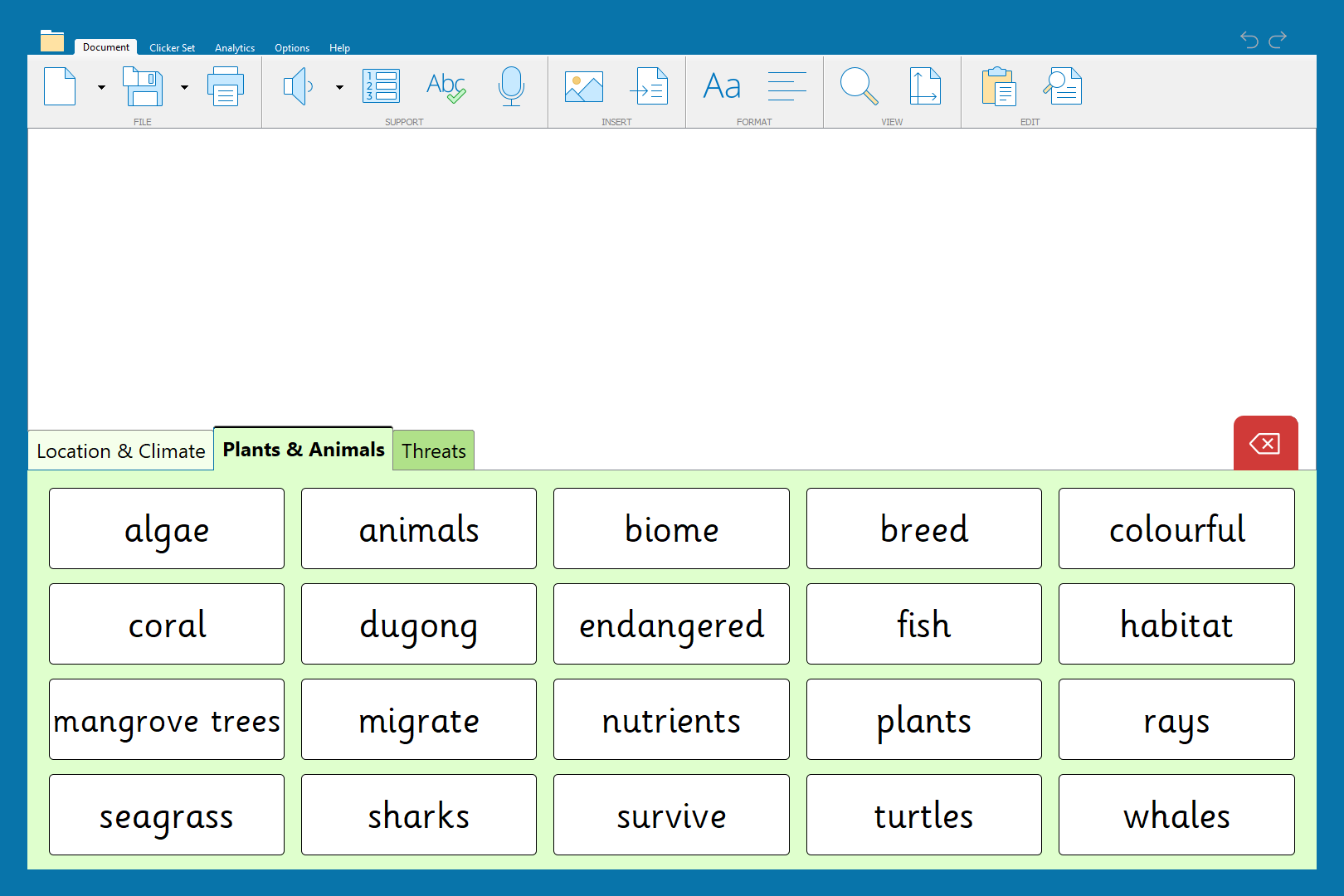
Find, use or modify prebuilt LearningGrids
Search for LearningGrids in the resource library or directly within Clicker 8. You can search for grids by subject or use a keyword. The layout changes depending on these categories:
- talk sets
- word banks
- matching set
- connect set
- Clicker books
- Clicker boards.
Learn more about LearningGrids by watching the LearningGrids Tour (3:51).
To use a grid, select the green ‘Open’ button on right of the resource description. This will download the Clicker file.
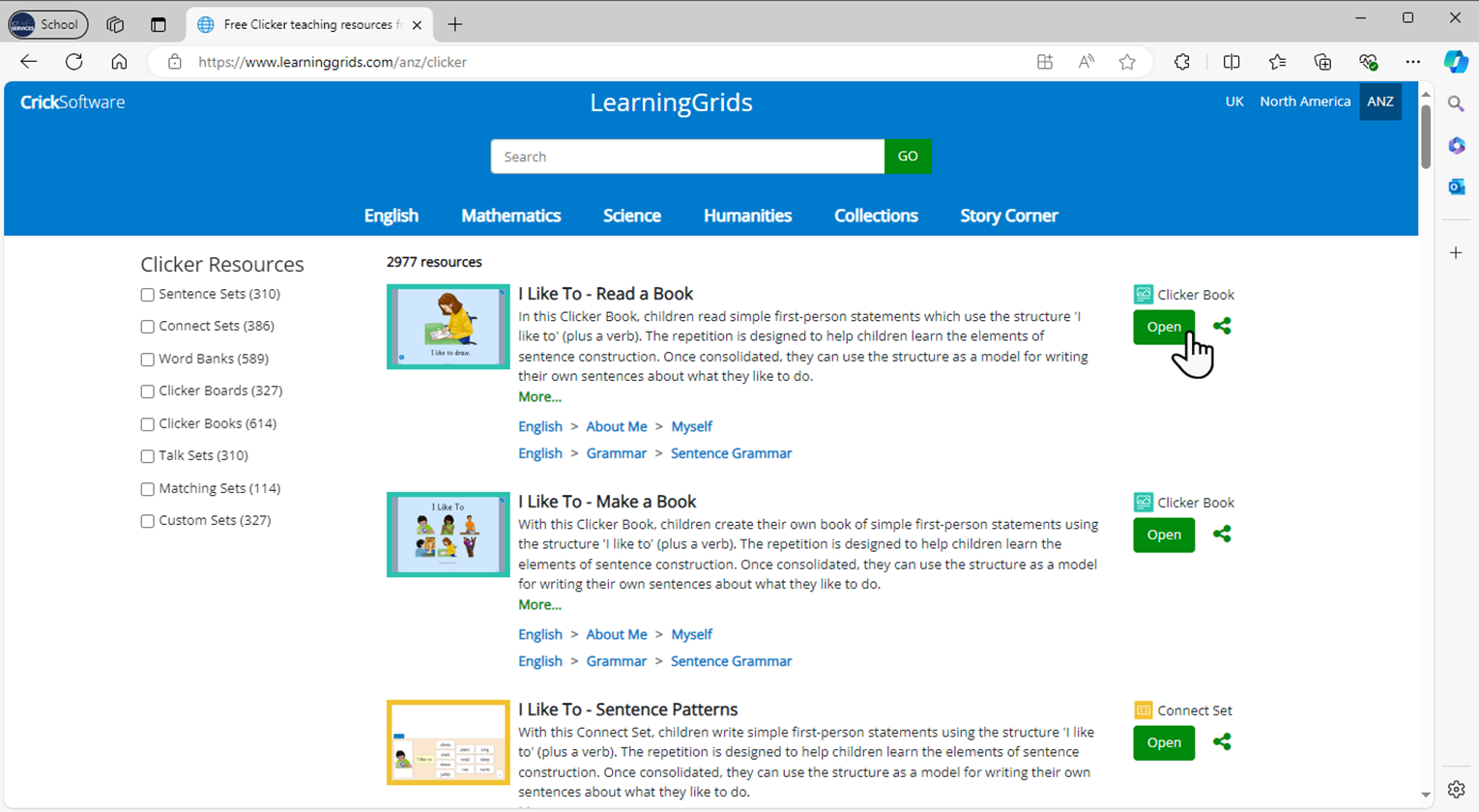
After downloading, open the file in Clicker 8 and edit it in 'Edit View' via the Clicker Set ribbons. Do not forget to save your LearningGrid as a shared file so students can access it on their devices. Watch Save and Print (1:54) for more on saving.