
Navigating Microsoft Class Teams
Microsoft Class Teams is a comprehensive platform for teachers to manage classroom workflow while fostering student engagement. Organise all your class-related materials in one accessible location with features such as Class Notebook (the Class Teams version of OneNote), assignments, channels and files. Learn on this page how Class Teams is set up and how to use it.
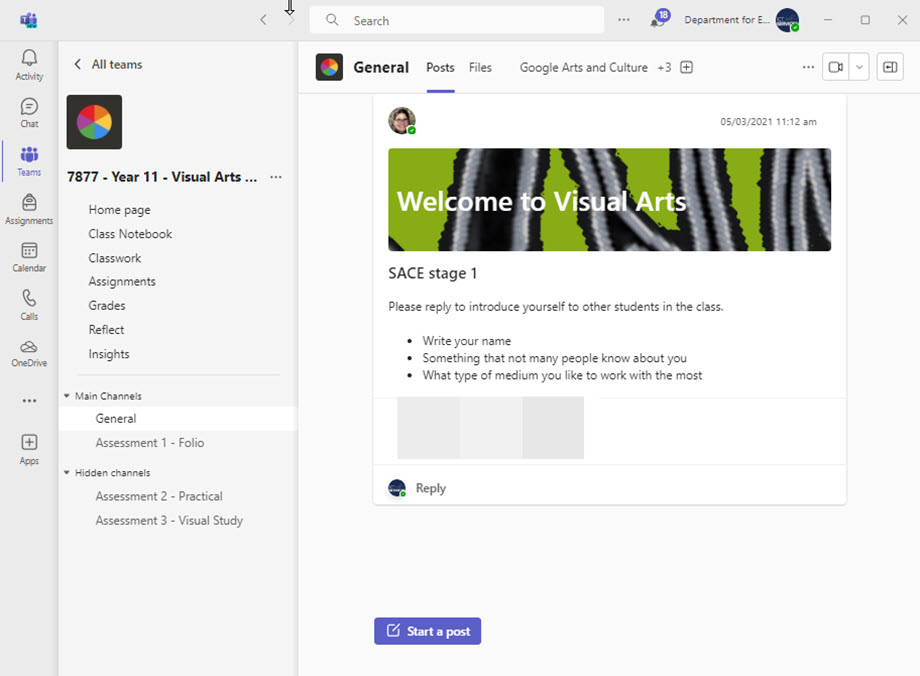
Home page – a customisable SharePoint page for each class team
Every Class Team has a home page that serves as a central hub for communicating important information and links to students. It features pre-built components such as resource links, a class schedule and an 'about me' section for educators.
The home page is a customisable SharePoint page that can be set up to reflect the ethos of the class.
Class Notebook
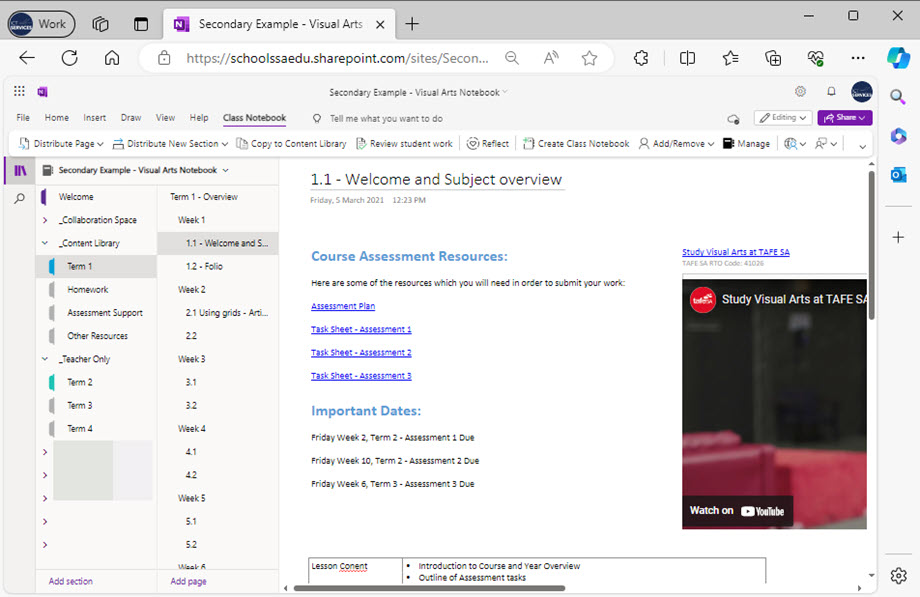
The Class Notebook is a unique repository of resources prepared by the teacher for student learning. There’s one Class Notebook in every Class Team. It has several sections:
- Collaboration space – accessible and editable by all students.
- Content library – accessible to all students, editable only by teachers.
- Teacher only – visible only to teachers.
- Individual student sections – visible only to the individual student and the teachers.
Students can interact with the content in various ways, for example through typing, drawing, adding multimedia elements and using the Immersive Reader for accessibility.
Classwork
Classwork modules allow you to organise resources, and make them easy for students to find and access. You can also add context to the collection by adding text or attaching documents, links and assignments for students.
Providing all necessary resources conveniently in one place makes for a better learning experience.
Assignments
Class Teams enables you to set, mark and provide feedback on assignments.
The reading progress feature within assignments records student reading data, including accuracy, speed, omissions, repetitions, mispronunciations, insertions and self-corrections.
Grades
The grades feature allows teachers to view assignment grades, which are also visible to students. These grades can be exported as a CSV file and are included in the insights tab, providing valuable progress data.
Reflect
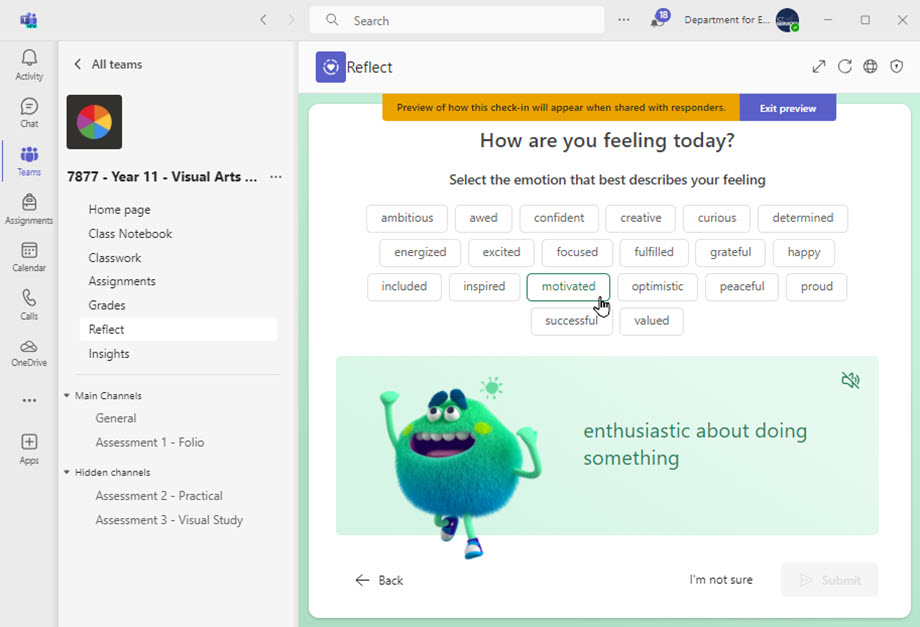
Reflect houses a range of resources for well-being check-ins and activities, including brain break activities, mindful digital colouring, and short social and emotional learning podcasts.
Insights
The insights section provides a snapshot of student engagement with Class Teams. The snapshot captures:
- digital activity
- assignments
- reading progress
- reflect usage
- mood trends
- recent assignment submissions.
You can delve deeper into each section for detailed information and export data to Excel.
File tabs
Each channel has a file tab. You can add file there allowing for students to edit them.
If you have read-only files, you should only store them in the general channel – in the ‘class materials’ folder.
You can access student work through SharePoint – learn how on Microsoft Teams assignments and SharePoint documents.
Channels
Class Teams includes 2 types of channels: standard and private.
Posts in standard channels are visible to all, while those in private channels are only visible to channel members.
Private channels can facilitate communication between teachers and SSOs, individual students or student groups for differentiated learning.
Sharing and reusing Class Teams resources
You can easily reuse and share various components across multiple class teams. For example:
- assignments
- rubric components
- classwork modules
- posts and announcements
- Class Notebook pages and sections
- Class Team structure.
Resources
Related content