
Leveraging Microsoft Stream for teaching and learning
Microsoft Stream is an innovative video platform that integrates with Microsoft Teams and Microsoft OneDrive. This platform is designed to enhance teaching and learning experiences, making them more engaging and interactive through the use of visual media.
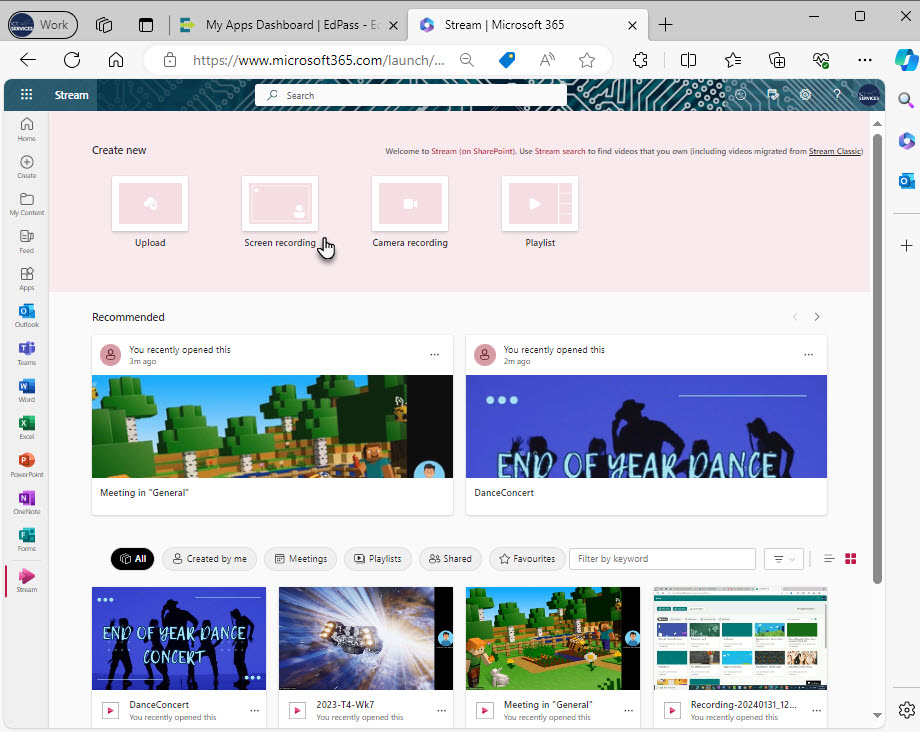
How teachers can use Stream
Microsoft Stream offers a multitude of features that can be harnessed by educators. For example:
- use the screen recording function to create tutorials to guide students in using software or applications
- if you’re implementing a flipped classroom approach, you can use the camera recording or screen recording features to record lesson content and materials
- easily collaborate and share videos among teachers through Microsoft Teams – store video files in a Microsoft Team, creating a curated collection of videos tailored to your specific context. This collection can be accessed by multiple teachers within the school, fostering a shared resource pool. Examples of content could include a teacher explaining a particular concept, junior primary teachers reading books aloud, recordings of songs, or videos of whole school events
- use Stream as a self-reflection tool and for peer-to-peer feedback – you can record a specific part of your lesson and ask a colleague to provide constructive feedback through comments.
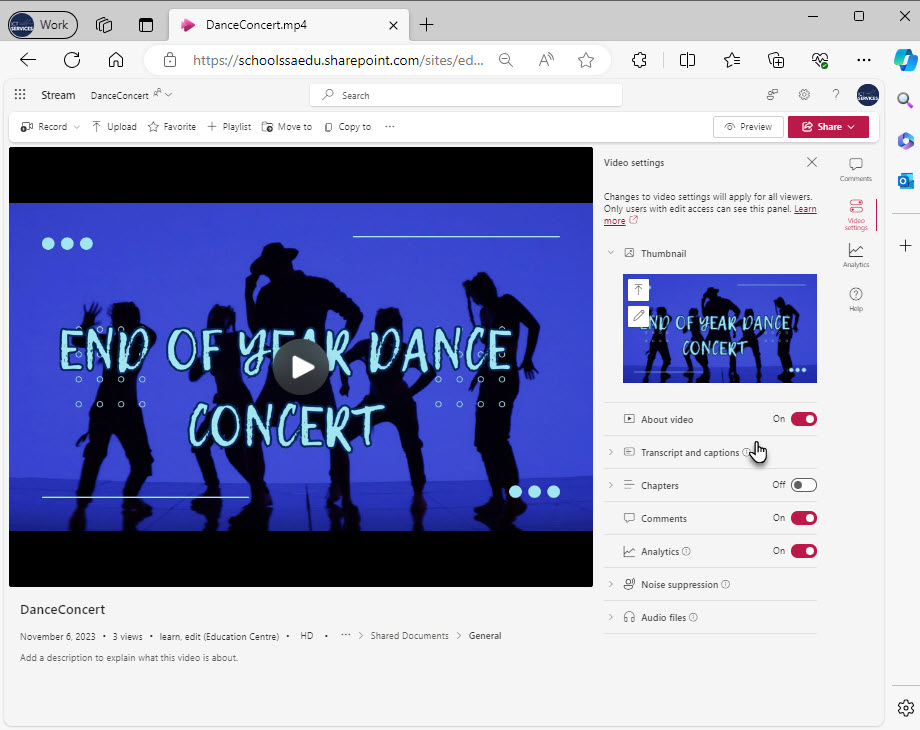
For students who need support from a transcript or closed captions, Stream can generate these for videos recorded on or uploaded to the platform. You can download transcript files and make them accessible without the video in your school’s learning management system.
For longer recordings that you share with your students, you can add chapters to your videos for easier navigation.
How students can use Stream
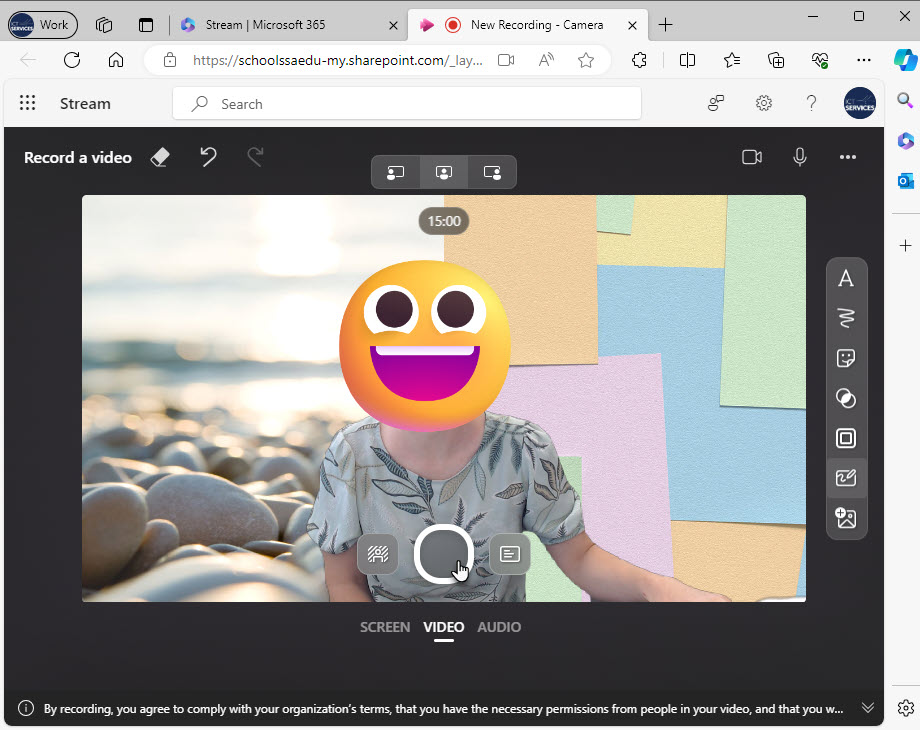
Microsoft Stream empowers students to document their learning journey. They can narrate a screen recording or create a recording using a webcam. Stream's annotation features allow students to reflect on their learning through annotations. They can also edit their videos and add media such as background music.
Stream enables students to create and share videos within the department, and review peer and teacher feedback through the comment sections. Students can also curate lists of videos they have access to, organising their video content to support their learning.
Accessing Stream
Microsoft Stream is part of the Microsoft 365 (M365) suit of applications. Students and staff can access Stream through the EdPass portal or Microsoft 365 app launcher. For information on accessing M356 see: Microsoft 365.
Resources
Related content