
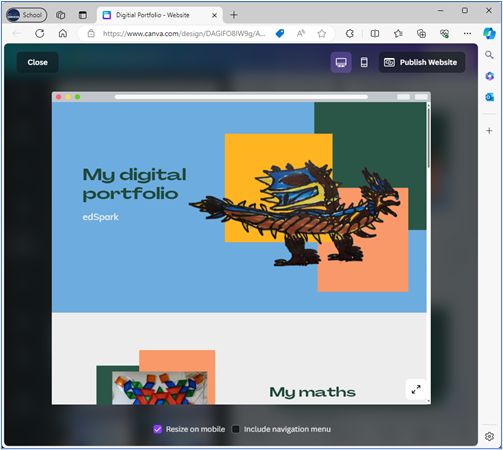
Canva digital portfolio example.
Digital portfolios offer an innovative way for students to collate and share their learning journey. These online collections of work provide an accessible, professional platform that’s easy to edit and update. Students can also share their progress with family members, regardless of distance.
Digital portfolios are a powerful tool for showcasing student growth and learning. They:
By integrating digital portfolios into your classroom, you can enhance student engagement and foster a culture of continuous learning.
There are many platforms available for creating digital portfolios. You may already have access to some of these at your school. For example:
If portfolios need to be shared with individuals outside of the department, like family members or employers, it's important to choose a platform allows for external sharing. Keep in mind that platforms may change this at any time. (For example, as of February 2024, Google Sites can only be shared with individuals within the department .)
Additionally, if students are building their portfolio over time, considerations need to be made about accessing data from previous years.
Building a digital portfolio is similar to creating a paper one. Teachers need to guide students on what to include and whether they need to annotate their samples.
Canva, Adobe Express and Microsoft Sway offer a range of prebuilt templates.
You can also create specific templates for your classes, or students can build their portfolios from scratch.
If your school uses Frog you can use Frog’s ePortfolio feature .
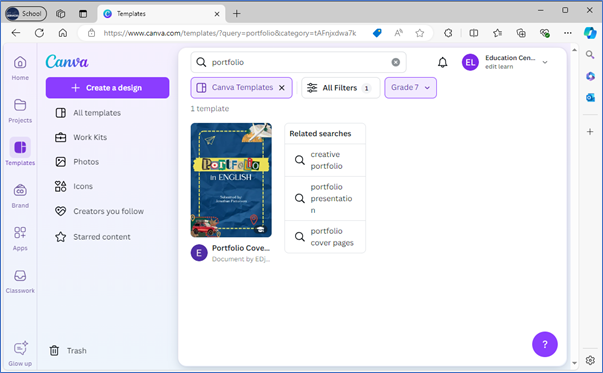
To find templates suitable to use in Canva:
Use the filters to narrow your search and find a template which will work for you and your students.
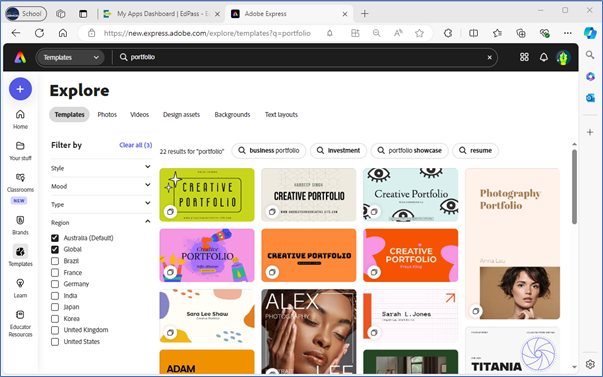
To find templates suitable to use in Adobe Express:
Use the filters to narrow your search and find a template which will work for you and your students.
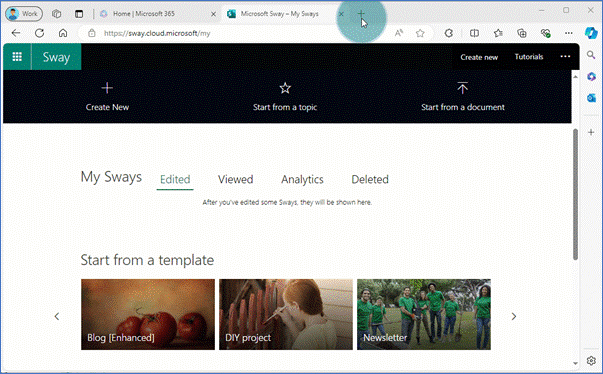
There are a limited number of prebuilt templates in Sway. To access these:
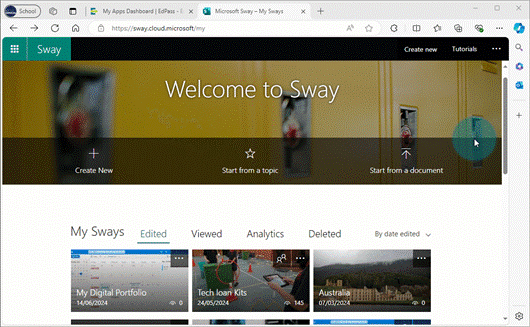
You can also create a Sway and share this with your students to use as a template.
Step 1: Create the Sway adding sections and instructions.
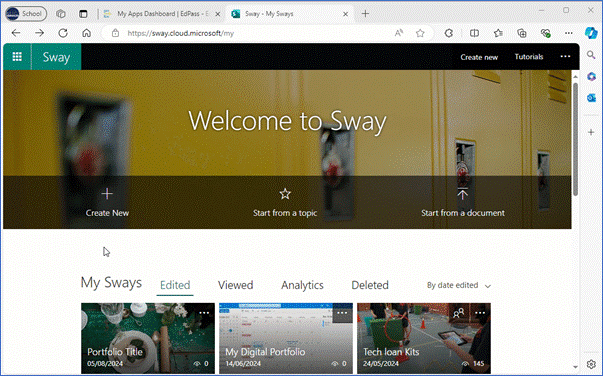
Step 2: Share the Sway as view only.
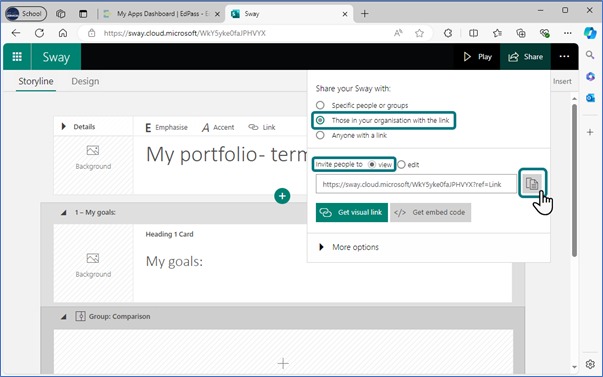
Step 3: Get students to create a copy of the template to use themselves.
Students should:
They can then edit and make changes to the Sway without editing your copy.
Canva digital portfolio example.
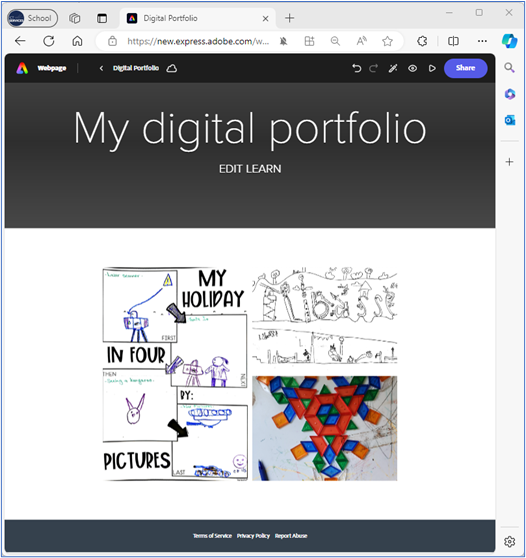
Adobe Express digital portfolio example.
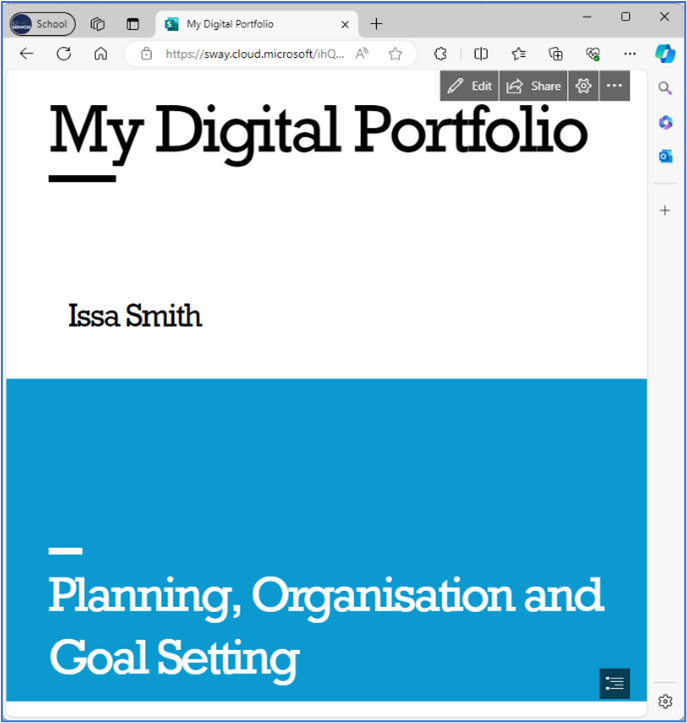
Sway digital portfolio example.