
Google Drawings
Google Drawings is a web-based tool accessible through Google Drive and Google Docs for creating, editing, and collaborating on visual content. It provides a canvas for:
- drawing
- adding images and gifs
- creating diagrams, or
- using as a whiteboard with your class.
Inbuilt features such as diagrams templates and charts help to create visually appealing content for students. Students can create their own diagrams to explain their thought processes or use a stylus to create digital art.
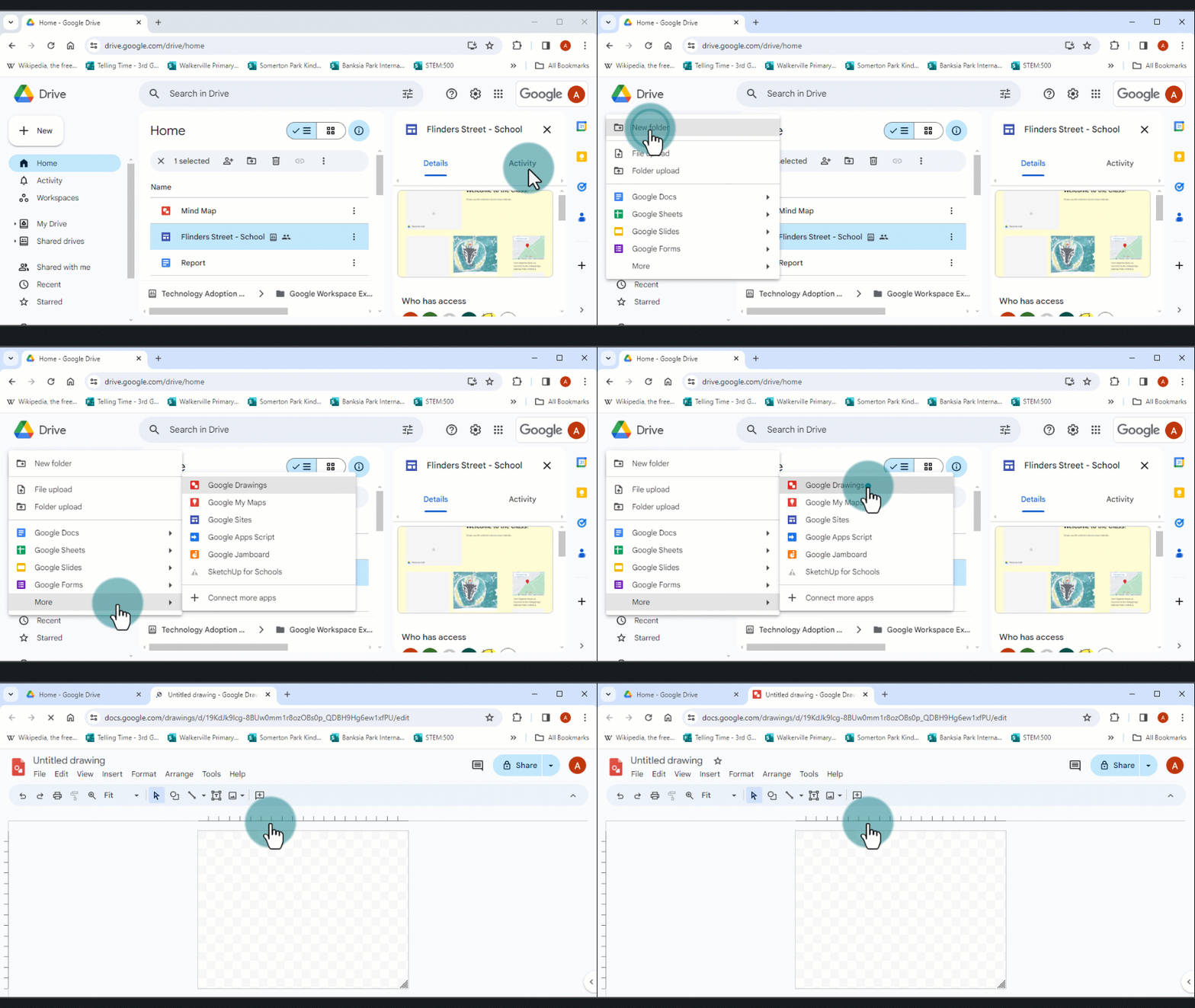
You can access Google Drawings from the Google Drive homepage by:
- Selecting ‘+ New’
- Scrolling down and selecting ‘More’
- Selecting 'Google Drawings’ from the file types.
Using Google Drawings on an Interactive Whiteboard (IWB)
The Scribble Tool in Google Drawings makes it an ideal application to use on an IWB in the classroom. Add images from the web or Google Drive directly onto your canvas to stimulate discussions. If your students have 1:1 devices, you can invite the whole class to edit the drawing canvas. If students don't have access to stylus and devices which allow touch input, they can contribute via adding text or highlighting sections of the canvas and adding comments. The canvas can be expanded to create an unlimited space for collaboration.
Using Google Drawings to create graphics
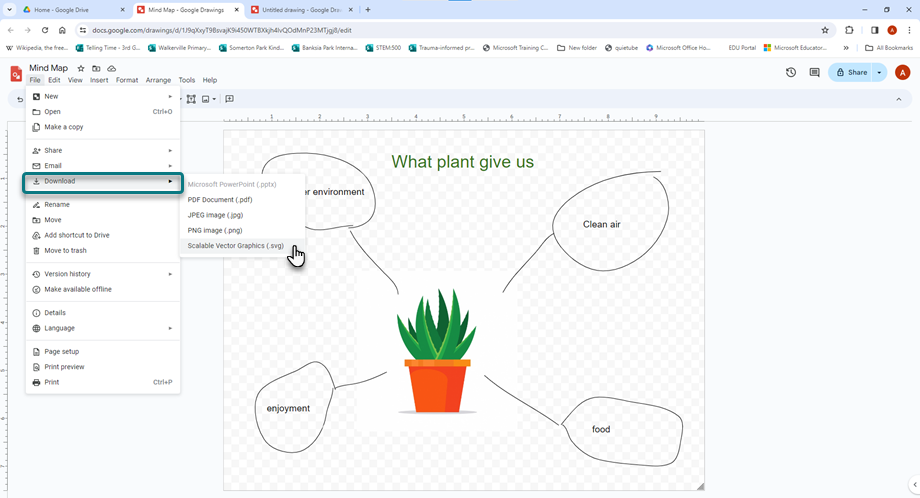
Drawings or charts created in Google Drawing, can be exported for use in other applications. Google Drawings can be exported as image files, PDFs, or vector files for laser cutting and other uses.
Engaging students with Google Drawings
Students can use Google Drawings in a wide range of contexts. They can use the basic drawing tools and inbuilt diagram templates to create custom graphics.
Suggestions for student use:
- create a mind map to explain a concept
- use the Venn diagram template to visually represent their thinking about a topic
- share a Google Drawings output to collaborate during a brainstorming activity
- create infographics
- use Google Drawings with a stylus to create graphics or designs.