
Exploring the Makers Empire teacher dashboard
Makers Empire has an in-depth Teacher Dashboard that allows you to plan, track progress, interact, and learn about different functions. The platform has two parts: the Teacher Dashboard and the app.
Getting to know the Teacher Dashboard
You can access the Teacher Dashboard once you set up your account, whether your school has a Makers Empire subscription or you're using a free trial. If you're new to it, check out the ‘getting started information’ in the left side menu and the professional development section. These areas give you an overview of the teacher dashboard and the design application. Completing the professional development course also earns you a certificate for your teaching records.
The main workspace of the teacher dashboard is organised into sections. The top section acts as a checklist to get you started. The next section, ‘Activity’ shows class activity. The ‘Quick Links’ section gives you easy access to frequently used areas like 'My Classes' and 'Challenge Courses'.
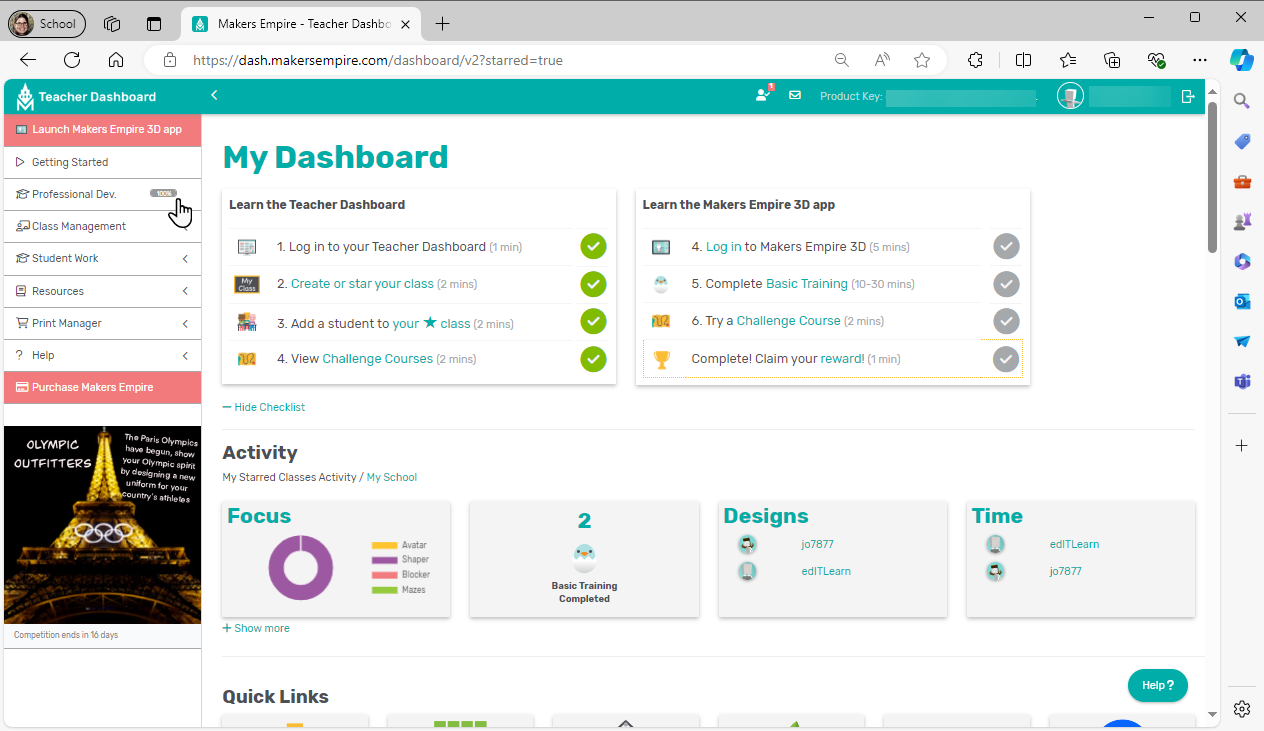
Further down the page, you can access individual Challenge Courses and get ideas from recent competition designs. Watch the Makers Empire 3D App and Teacher Dashboard Tour (6 minutes) for a visual tour of the student app and the teacher dashboard.
Assigning and assessing student work
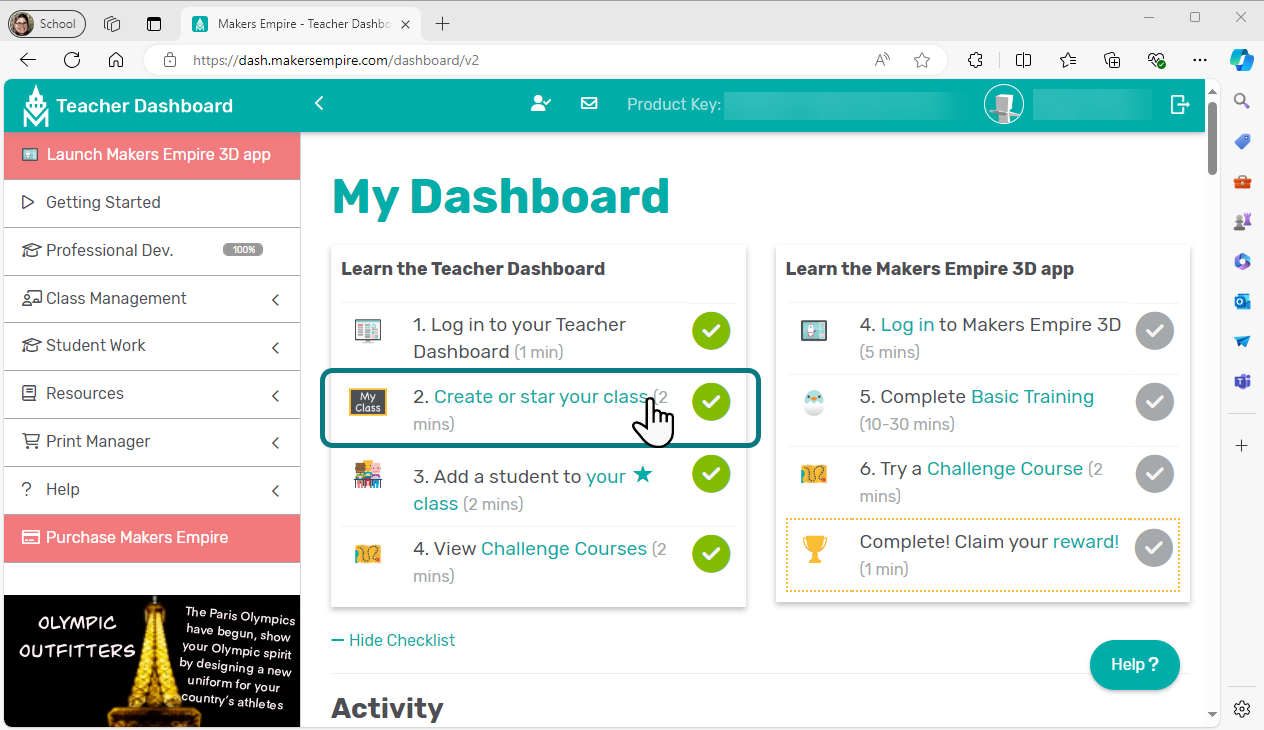
You can assign various activities to your students within the Makers Empire app. First, create your class and add your students. If you need help, follow the step-by-step guide in the Teacher Dashboard by selecting '2. Create or star your class (2 mins)’ in the 'My Dashboard' section. You can then assign challenge courses, teacher missions, and training labs to your classes or individual students.
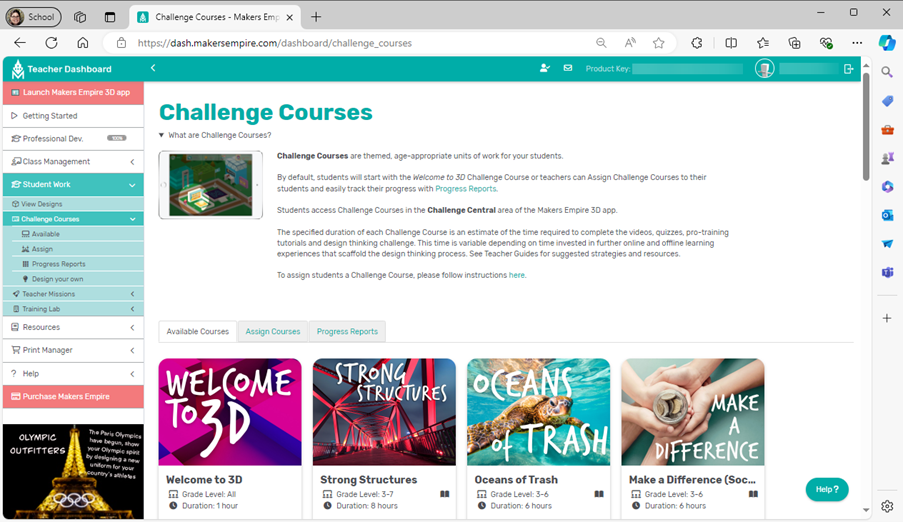
Challenge courses are units of work ranging from 1 to 8 hours. They guide students through design thinking processes with short videos, quizzes, and design tasks, aligned to the Australian Curriculum. Teachers can assign courses and check class progress via the progress report tab on the ‘Challenge Courses’ page.
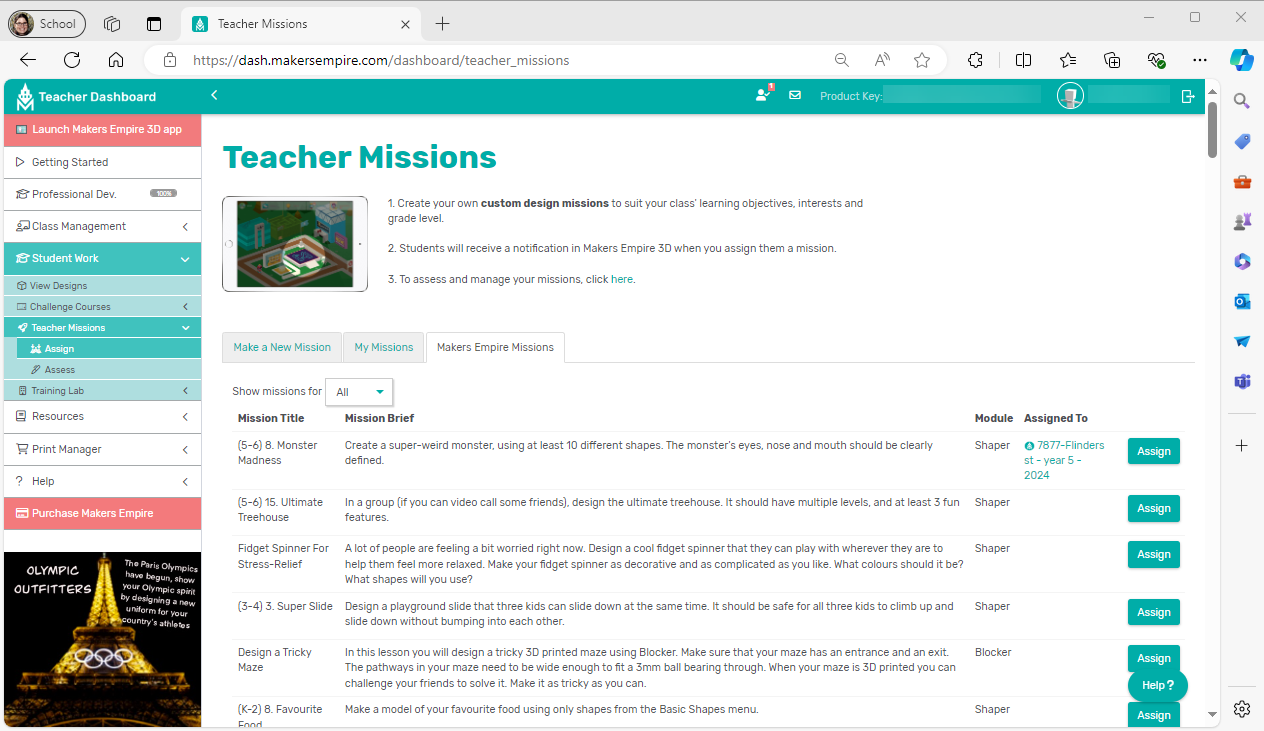
Teacher missions are shorter tasks that you can assign. They include a mission brief and allow you to restrict the tools students can use. You can choose from pre-made missions or create your own to fit your classroom needs and learning outcomes.
Basic training modules are automatically assigned to your students. You have the option to track their progress through the basic and pro training tabs. This helps you identify students who may need additional support. You can also view and give feedback on their designs.
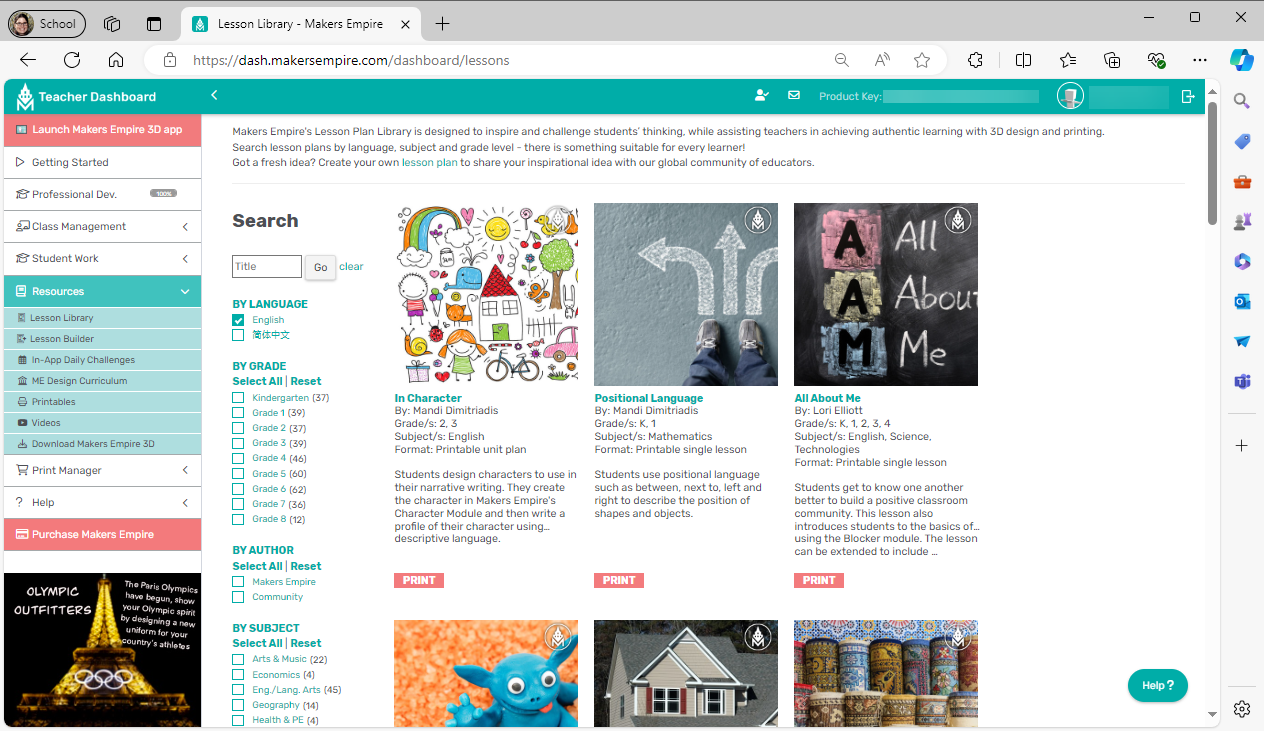
Resources, lesson ideas and printables
The ‘Resources’ section offers materials on:
- Lesson Library
- Lesson Builder
- Daily Challenges
- Design Challenges
- Printables
- Videos.
You can filter the ’Lesson Library’ by grade, author, subject, collection, or curriculum. Filtering 'For Beginners' is a good starting point. The lessons include ideas and links to the Australian Curriculum.
Printing designs
You don't need a 3D printer to start designing in 3D. The designing process is the key to improving students' spatial awareness. You can order 3D prints through the dashboard if you want to print and your school doesn't have a printer.
Exploring the app
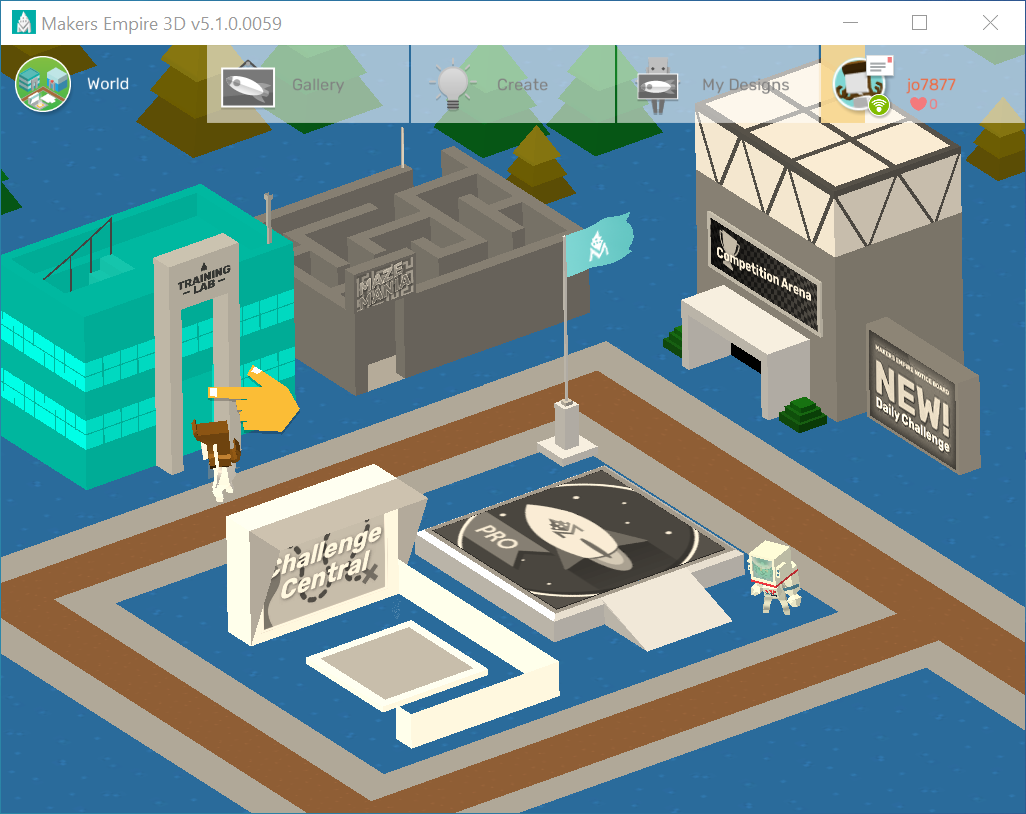
You may want to explore the app now that you're familiar with the teacher dashboard. Start in the ‘Training Lab’ and explore the different areas to become confident in guiding your students.
Related content