
Collaborating and celebrating through file sharing
File sharing enables collaboration and celebration. Files can be shared with colleagues and students for collaboration and co-authoring, and some files can be shared with parents and community members.
Sharing files, rather than downloading a copy and attaching it to an email, allows for better version control and facilitates collaboration.
Let's explore the different platforms available for sharing within the department and externally.
File sharing in Microsoft 365
Most apps within the M365 suite can only be shared with students or staff.
Exceptions are:
- Microsoft Sway
- Microsoft Forms.
Use these if you want to share files externally.
You can request to share OneDrive or Teams folders externally
If you have a business reason for sharing files externally, you can make a request to share folders within OneDrive and Teams externally. An example of a business reason is a preschool wanting to share photos with individual parents.
Your request will be reviewed by Cyber Security for approval.
Setting permissions for shared files in M365
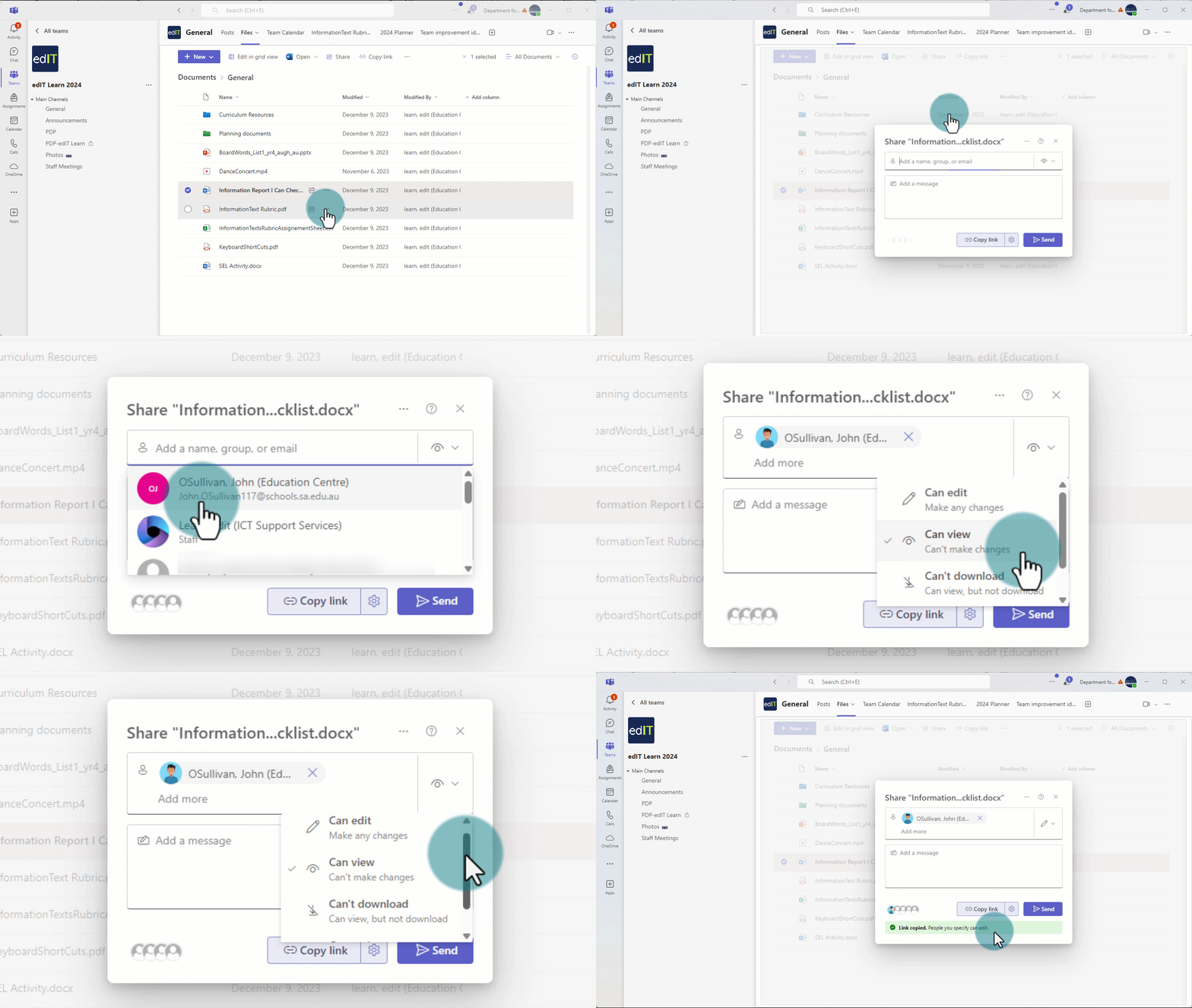
When sharing files saved to the cloud, you can choose what access the recipients have:
- editing (can edit)
- view only (can view)
- view without downloading permissions (can’t download)
- make suggestions and comments (can review)
File sharing in Google Workspace
Like M365, most apps within the Google Workspace suite can only be shared with students or staff.
The exception is Google Forms.
Selecting permissions for shared files in Google Drive
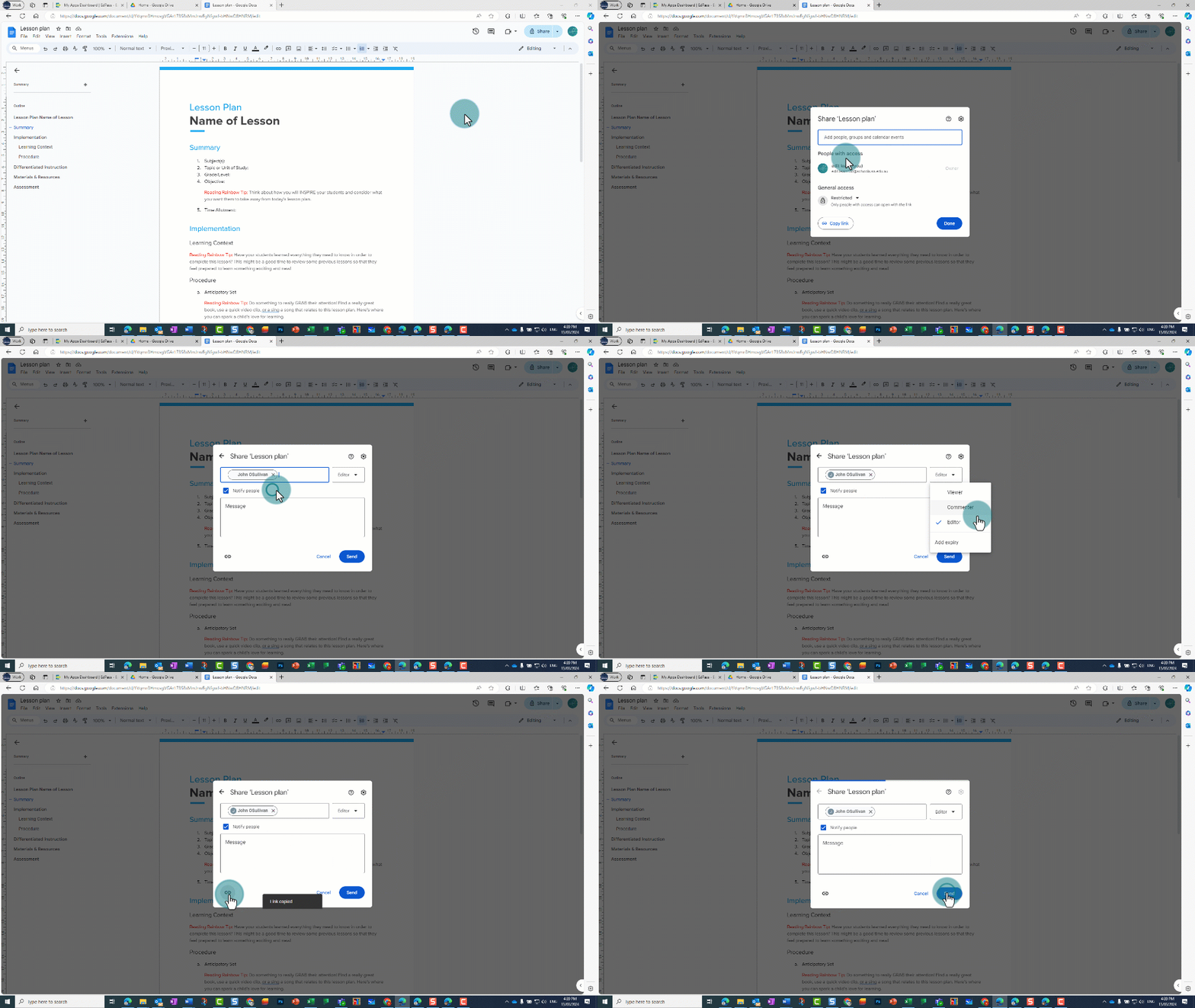
When sharing files saved to your Google Drive, you can choose what access the recipients have:
- editing (editor)
- commenting (commenter)
- view only rights (viewer).
More about Google Workspace
You can view the department’s default settings for Google Workspace – Central Google tenancy settings | edIT. Keep in mind that your school may use a local version that’s different – talk to your site IT tech to find out more.
File sharing in Adobe Express
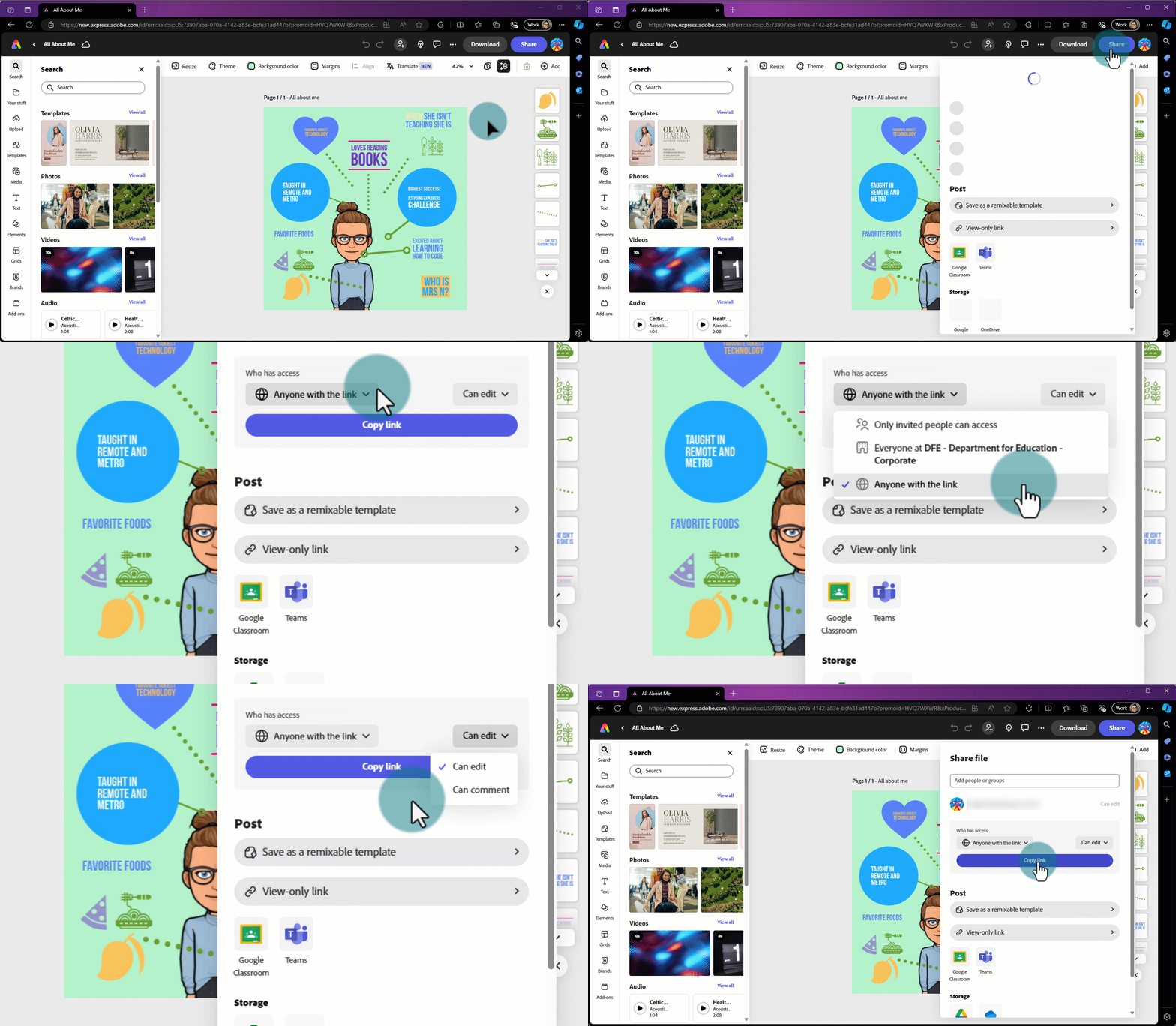
In Adobe Express you can share files either:
- with individual email addresses (only limited people can access)
- with a link that will work for people within your school with an Adobe Express account (everyone at DFE – school name or corporate)
- externally (anyone with the link).
After selecting who you’re sharing the document with, you can choose to give them permission to either:
- comment (can comment)
- edit (can edit).
{needs to be in an info box} Tip: If you want people to use your file as a template, you can save the project as a template in one of your libraries and share the library with colleagues or students.
File sharing in Canva
Canva projects, like Adobe Express files, can be shared externally.
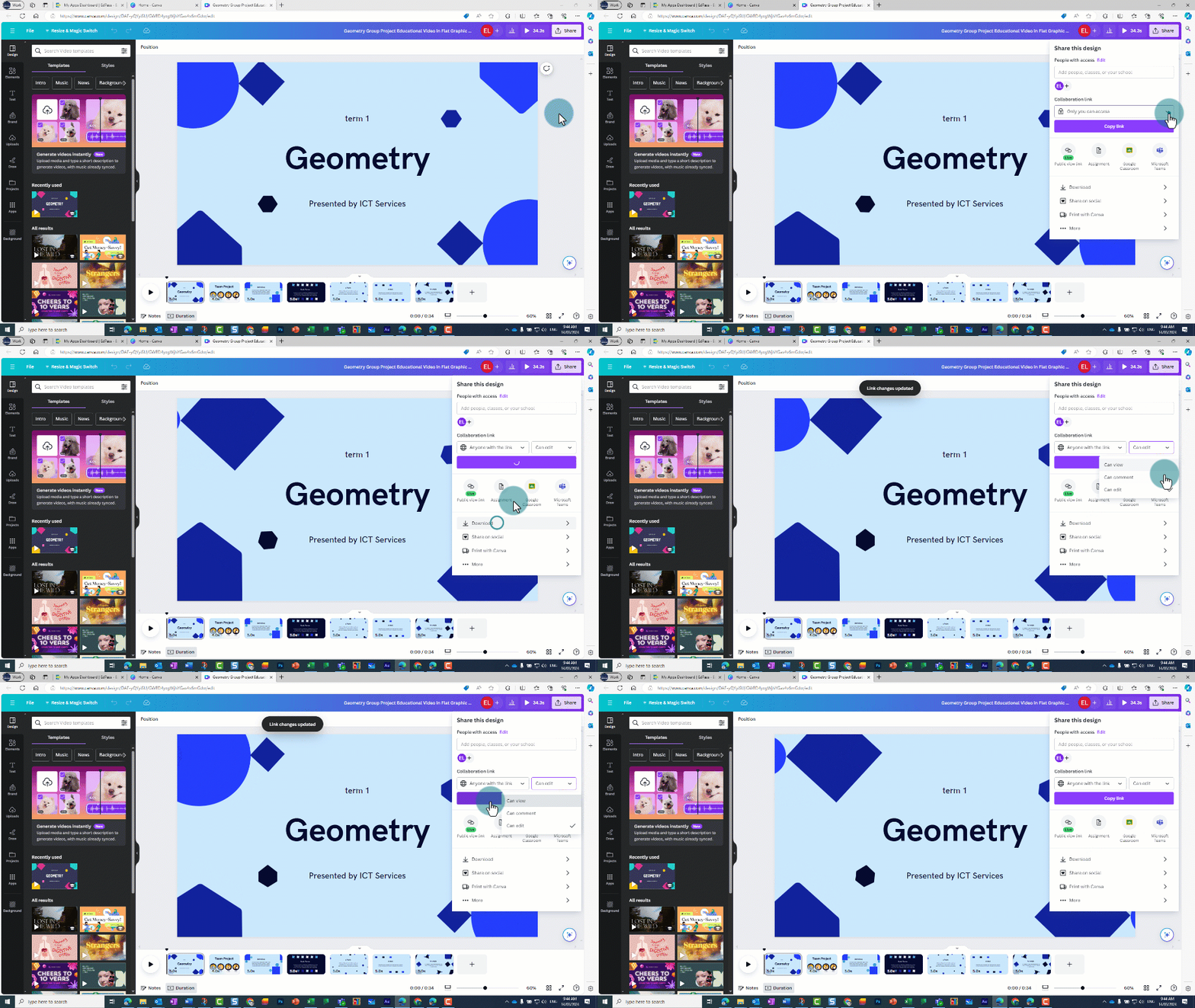
From within your design, click or tap ‘share’ and either:
- invite people via email (under ‘people with access’)
- create a collaboration link to share:
- with people within your school, preschool or business unit (the name will be prefilled based on your login, using Okta single sign-on)
- externally (anyone with the link).
Once you’ve selected who you’d like to share the collaboration link with, you can select a permission:
- edit (can edit)
- comment (can comment)
- view (can view).
File sharing in Frog
The learning management system Frog allows schools to set up a parent dashboard. This enables teachers to share information with parents about timetables, notices, assignments, forms and, if set up, student ePortfolios.
The parent dashboard can also contain information about classes and lesson content such as photographs, excursion information and newsletters.
Frog sites (websites) can be shared with colleagues, students and parents .
Learn more about file management in Frog.