
Classroom Management with Google Classroom
Streamlining Teaching and Learning in a Digital Environment with Google Classroom. (tag)
Google Classroom is a comprehensive Learning Management System (LMS). It allows teachers to:
- easily distribute and store content
- assign work
- provide feedback to their students.
You can oversee different parts of your class through various sections. The ‘Stream’ section is used for posting announcements and important information. ‘Classwork’ organises resources and sets assignments while ‘Grades’ gives a quick overview of student progress. Please note that currently, in the department tenancy, parents cannot be invited to Google Classrooms.
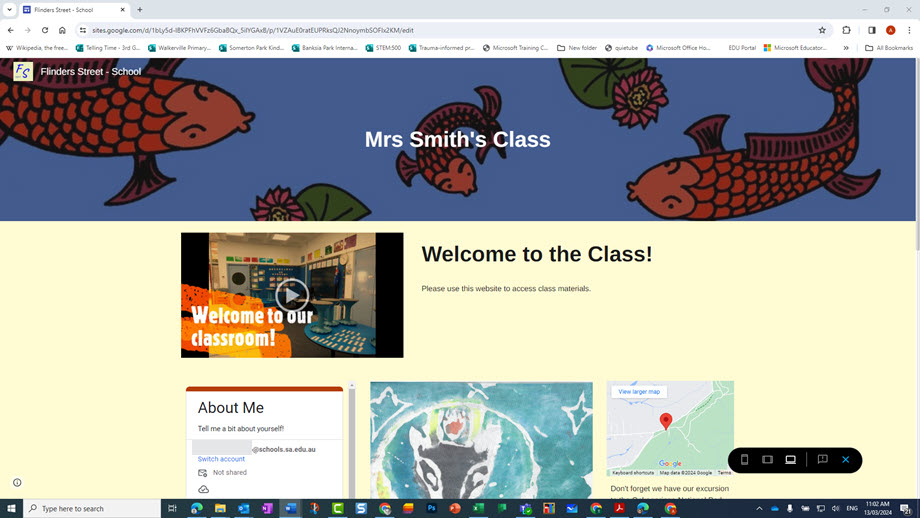
Using Classwork for content distribution and assessment
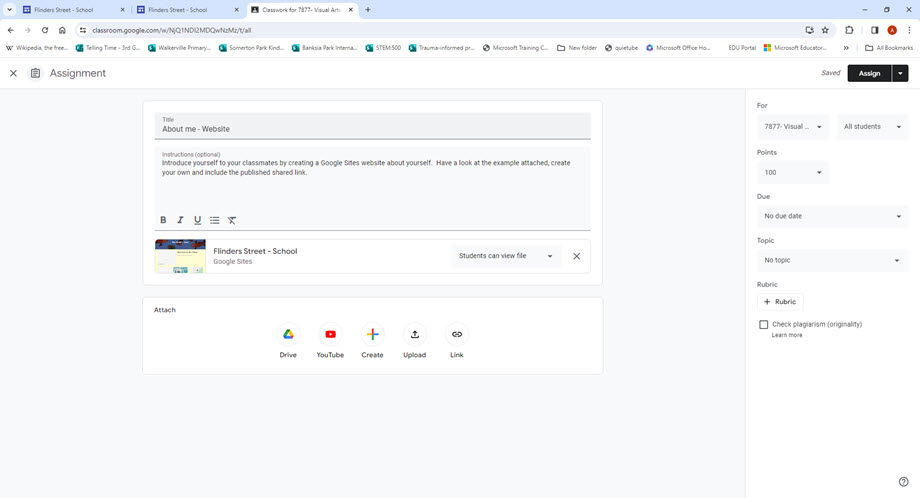
The ‘Classwork’ section of Google Classroom enables teachers to group resources and assignments under topics. You can organise your resources and reuse the same classwork modules and assignments across multiple classes using the ‘re-use post’ option. Information and instructions can be added to the modules and topics to explain to students how the content is to be used. The assignment feature allows you to create assignments and attach or create various files and documents, including Google Forms and quizzes.
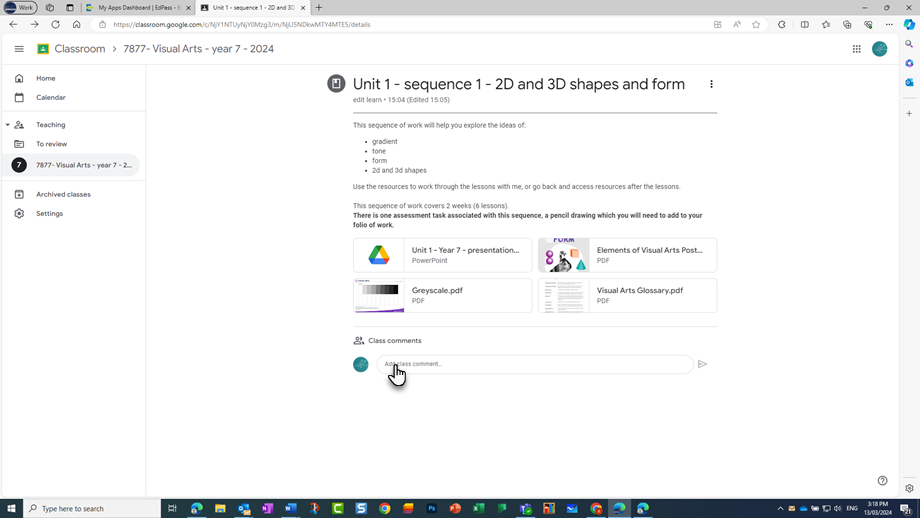
Accessing Google Classroom files
Google Classroom files are stored in your Google Drive. Each Google Classroom you create has an individual folder where you can access and edit any files uploaded to ‘Classwork’ posts.
Resources
Get started with Classroom for teachers - Computer | Google Classroom Help
Teachers' Essential Guide to Google Classroom | Common Sense Education
Related content