
Class Notebook with magnified navigation tabs showing the student sections for Joan Clark and Belinda Pearson in the navigation tab after the Teacher Only section.
Class Notebook is one of Microsoft’s education features. It’s a variant of OneNote and comes with pre-created sections for collaboration, content sharing, teacher planning and individual student sections.
Class Notebook is an ideal application for sharing media-rich content, planning, assessment and giving feedback. Its design encourages collaboration between students and teachers.
The best way to use Class Notebook is by setting one up through Class Teams.
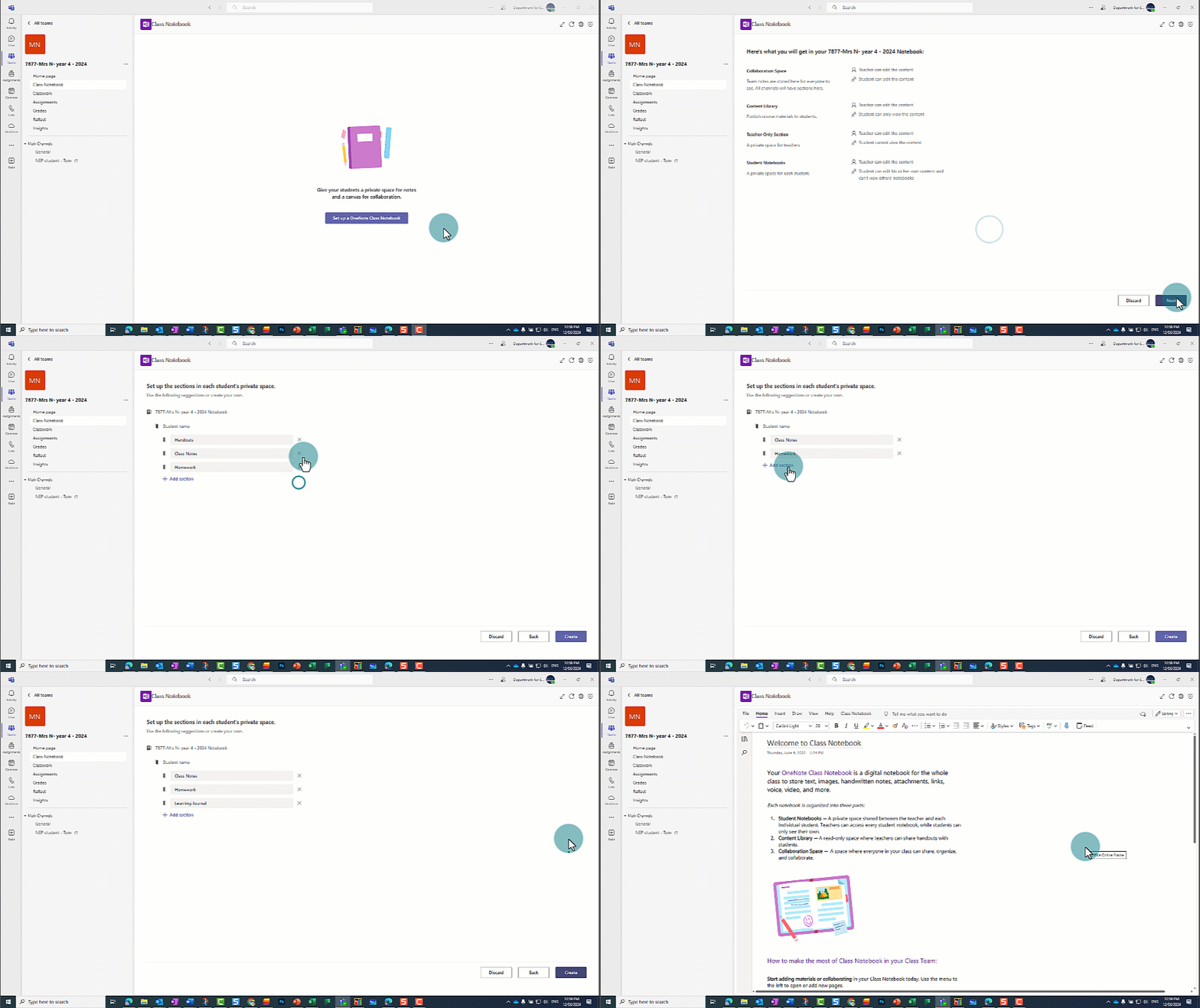
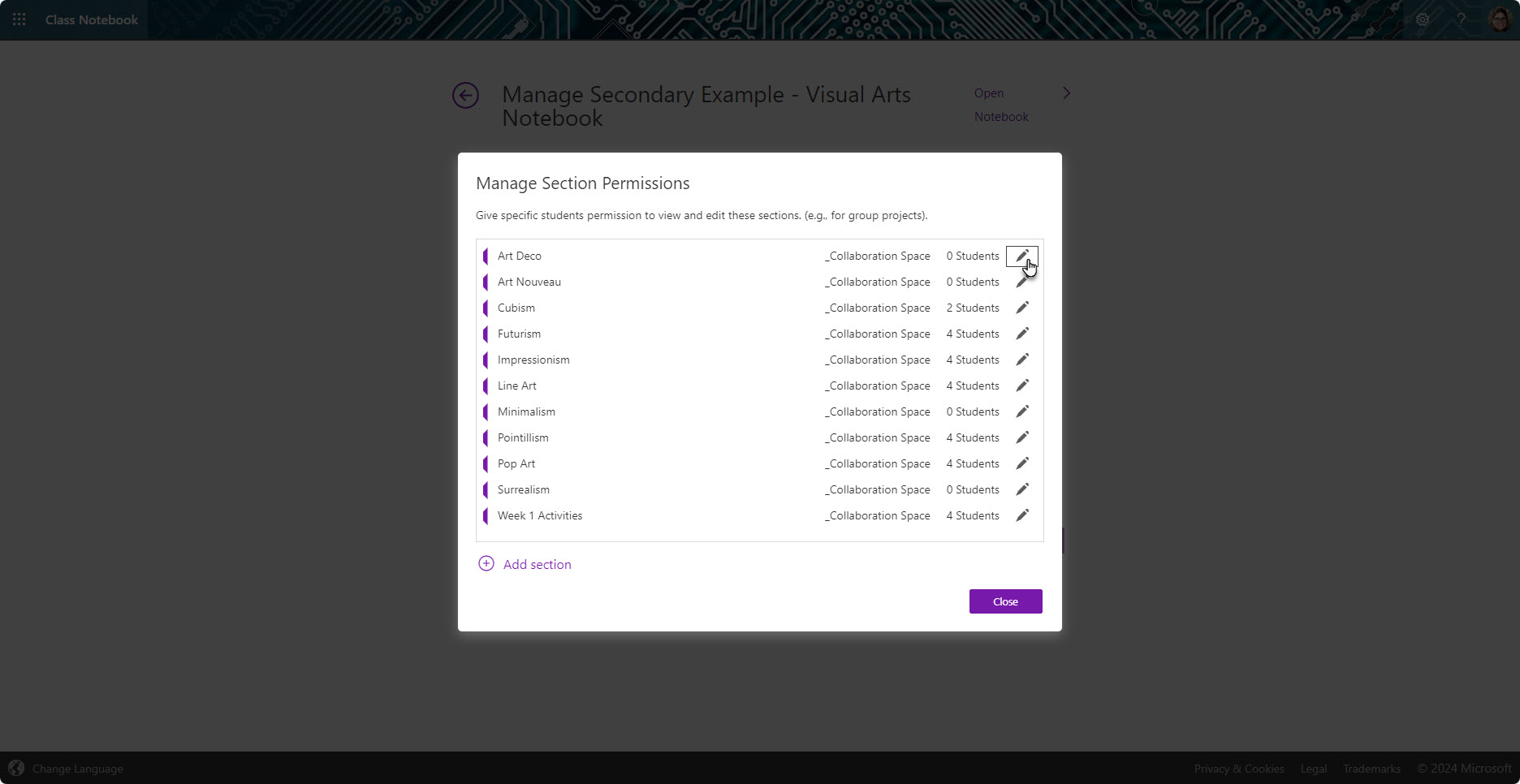
The collaboration section in a Class Notebook is ideal for whole class discussions and brainstorming activities. All students can view and edit subsections and pages. Teachers can control which students can edit and view sections within the notebook. You can track student contributions through the ‘show authors’ feature in the ‘history’ menu.
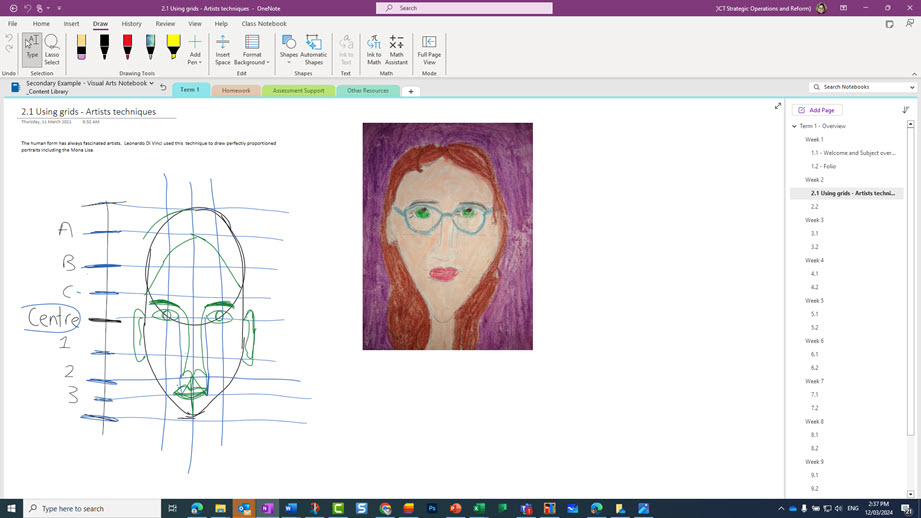
Only teachers can edit the content library. You can use the space to present pre-prepared content or use as a whiteboard for in-class instructions.
Students can review the content at their own pace and make copies of pages for their own sections of the Class Notebook.
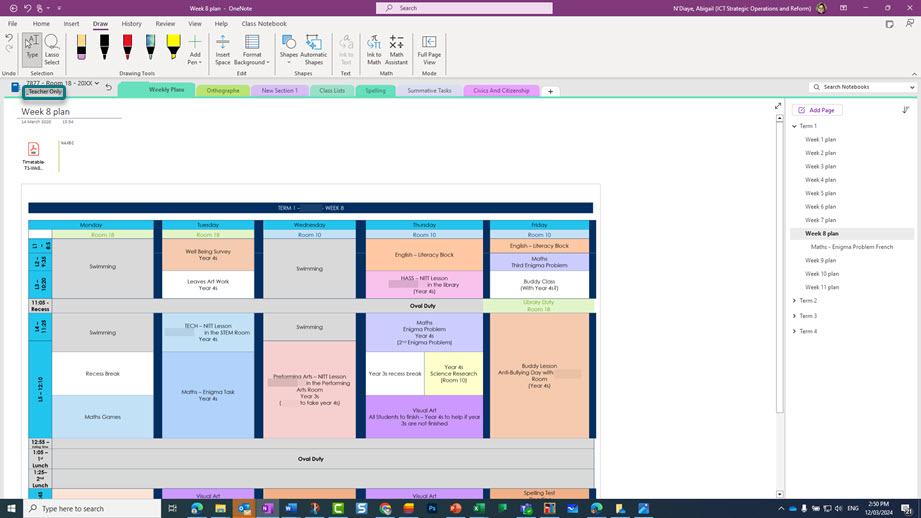
The ‘teacher only’ section is hidden from students. You can use it to plan within your class Notebook. For example:
Multiple teachers in the Class Team, such as co-teachers or specialist teachers, can access this section.
Each student within the Class Team has an individual section in the notebook.
You can add feedback directly within the Class Notebook, such as recording audio or video feedback or using the inbuilt stickers.
If you’re using the Class Notebook add-in you can also:
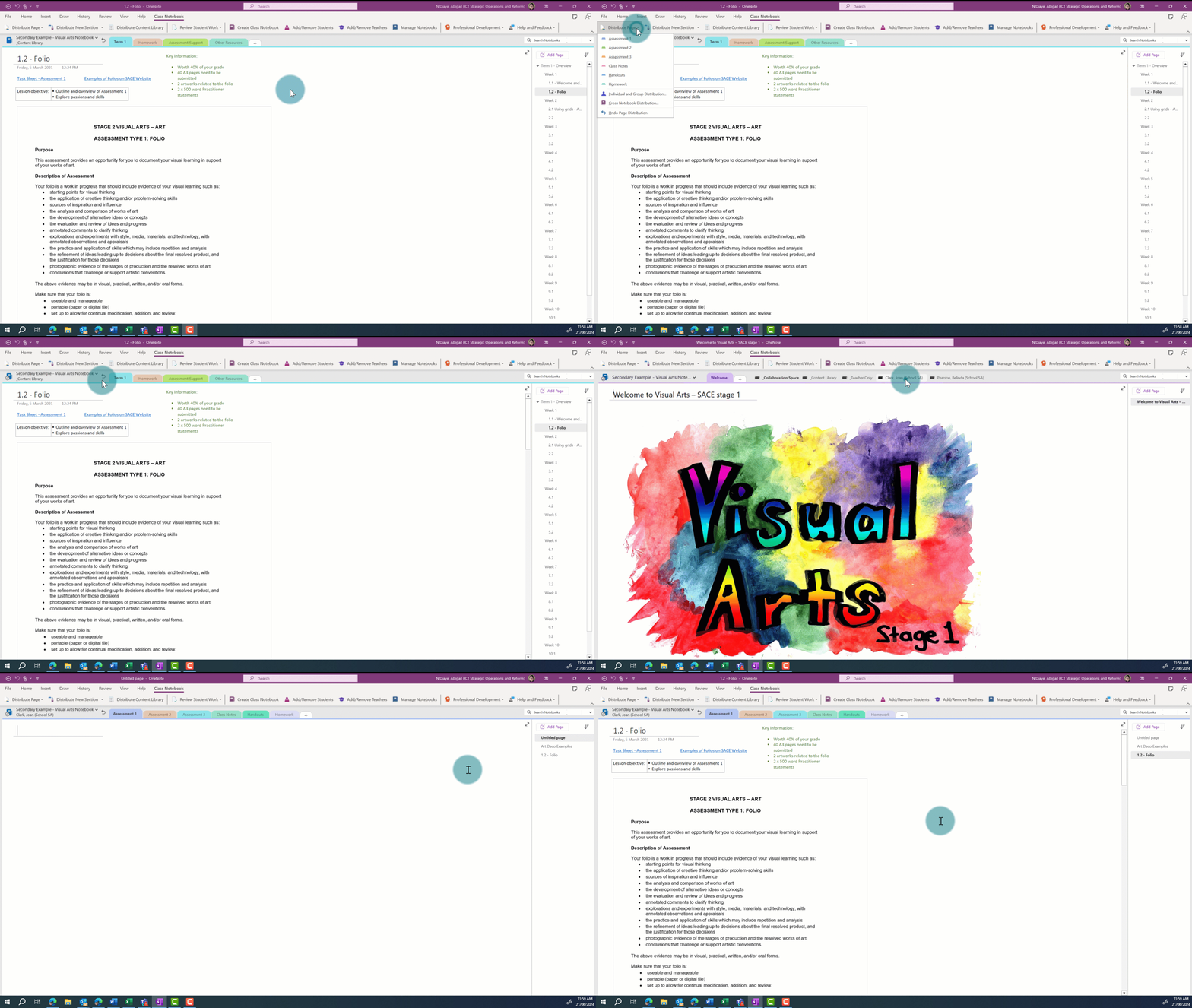
Class Notebook with magnified navigation tabs showing the student sections for Joan Clark and Belinda Pearson in the navigation tab after the Teacher Only section.
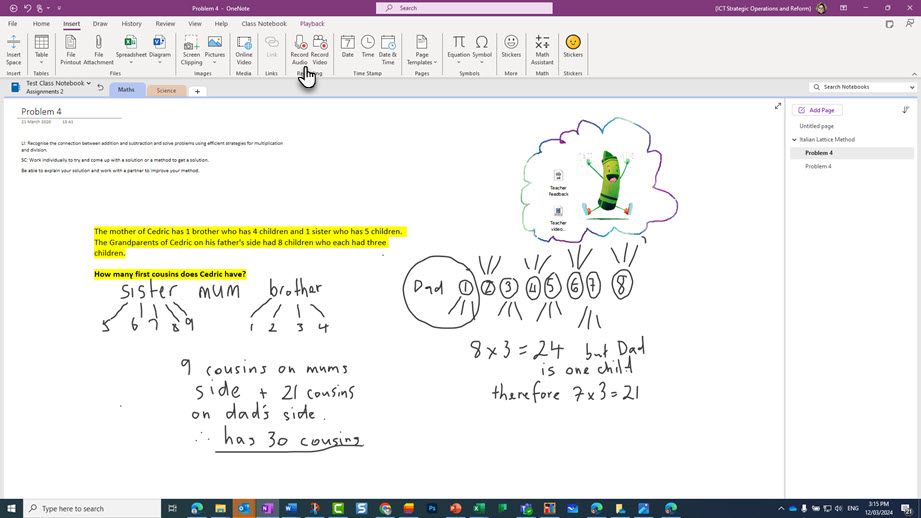
A maths page in a student folder in the OneNote showing a Maths problem, the student’s hand drawn working out and a crayon sticker and recorded feedback added by the teacher.
Find department-specific advice around accessing and using the apps and its features on:
Read more about Class Notebook, the Class Notebook add-in and how the app can help you in and around the classroom on Class Notebook overview on the OneNote website.
Find video guides and resources on OneNote for teachers | OneNote, including video guides:
Search for OneNote or Class Notebook guidance in the teacher academy on Microsoft Learn.
Self-paced online training:
Learn about new features and find inspiration on the Microsoft education blog for OneNote.
Search Microsoft support articles for OneNote Class Notebook resources.
Related content