
Canva Whiteboard - fostering collaboration and engagement in the modern classroom
Canva Whiteboard is an interactive online tool for sparking class discussions and collaboration. Choose from a variety of templates, complete with key questions, visual prompts and learning materials to stimulate class discussions, to easily prepare your whiteboard for a lesson.
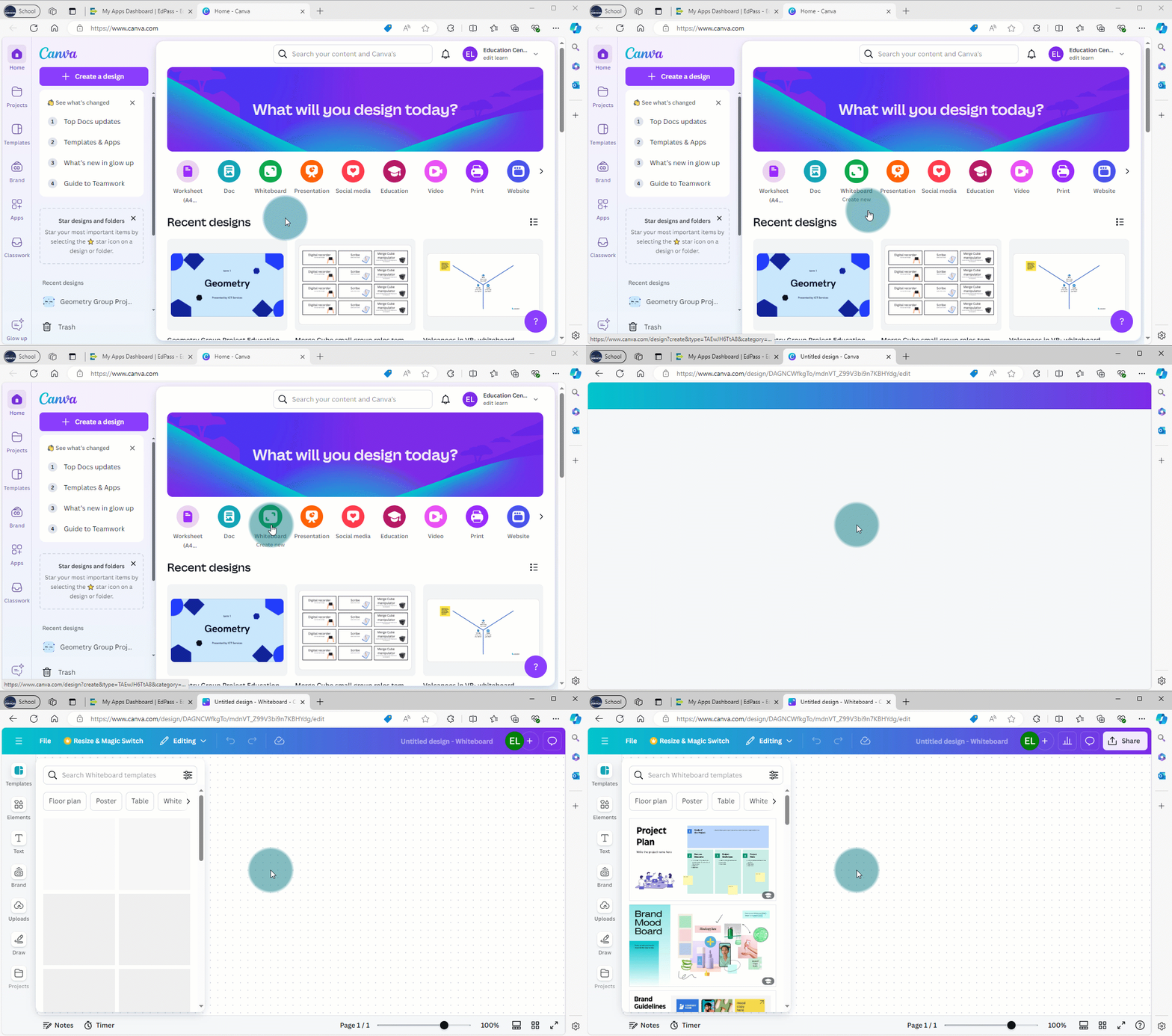
Using Canva Whiteboard as an interactive whiteboard (IWB)
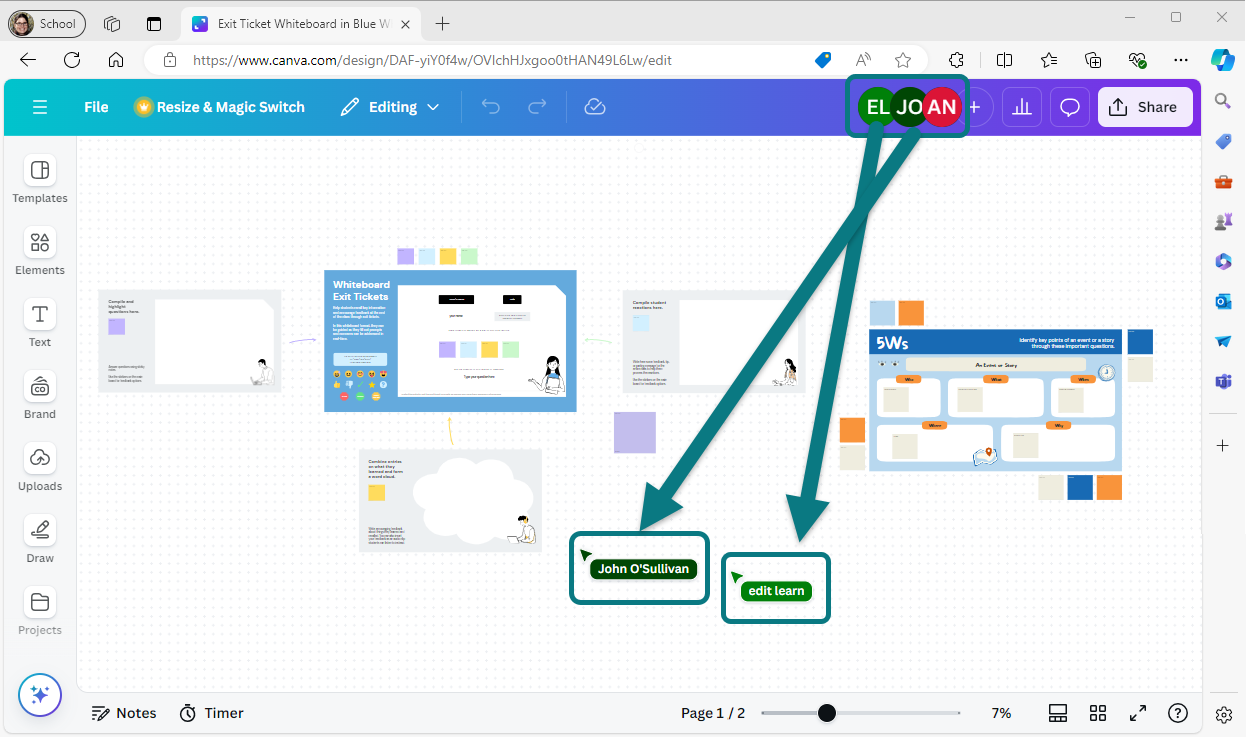
Where each student has a device, you can invite them to the session. Their cursors will then appear on the screen.
Students can access a range of elements, stickers and images to add to a slide or text, making it an engaging tool for feedback through emojis and other interactive features. The extensive image and sticker library supports students with low literacy skills or those who struggle with written language.
Even without individual student devices, Canva Whiteboard remains a valuable tool for teaching.
Choose from over 200 educational templates to use or adapt or create your own customised whiteboards from scratch. Then use the draw tools to write directly onto a whiteboard.
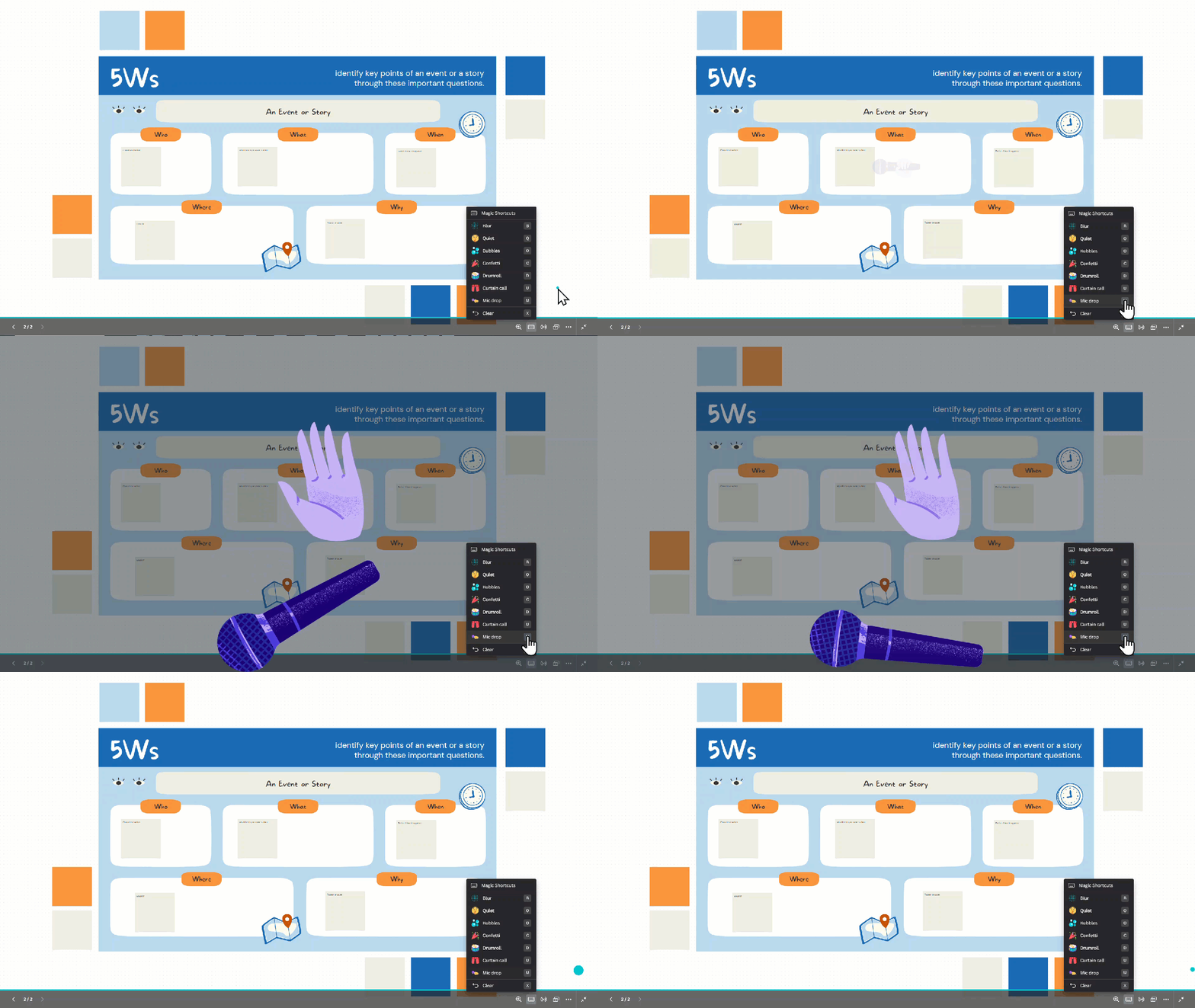
Additional features like the built-in timer, Magic Shortcuts for sound and visual effects in full-screen mode can enhance student engagement.
Sharing whiteboards
You can export your whiteboards as image files for printing and use them as visual classroom references or for individual students.
You can share a view-only link with parents, providing them a glimpse into classroom learning.
Student collaboration
When each student has a device, Canva Whiteboard's collaboration features truly shine.
You can see all your students' names when they join the whiteboard, and the ‘follow’ tool can guide students to different sections of the whiteboard.
When students use elements like sticky notes, their names automatically appear, making correct attribution easy.
Students can also work together in small groups. They can share a ‘public view’ link for a gallery-style walkthrough of their work.
Other ways to use Canva Whiteboard in the classroom
You can use Canva Whiteboard for a variety of activities such as:
- icebreakers with prompts like ‘what do you enjoy doing?’ where students can add text or images to the slide
- creating vision boards
- mind mapping or brainstorming class ideas
- using flashcard templates and Magic Shortcuts in presentations for simple guessing games
- creating interactive quizzes and games with animations.